
The fastest way to get a WordPress 404 page template is to match the method to your theme. On a block theme, edit the 404 template in the Site Editor. On a classic theme, add a 404.php file to a child theme. If you build with a page builder such as Divi, create a 404 template in its theme builder. Whichever you pick, finish by checking that the page returns a real 404 status code.
The default 404 page is usually a dead end. It shows a bare "Nothing found" message in a layout you never designed, and visitors who hit a broken link leave. Tutorials also contradict each other. One says open Appearance > Editor, another says edit 404.php, and a third says install a plugin. They are all correct, but each one fits a different kind of theme.
This guide walks through all three methods in order, then shows you how to test the result. We build sites with the Divi theme at Divi Hat, so the page builder step uses Divi. The first two methods work with any WordPress theme.
What a good 404 template needs before you start
A 404 template is the file or design WordPress loads when a URL matches no content. Which one you edit depends on your theme type, so identify that first, decide what the page should say, and protect your site before changing anything.
Know which theme type you have
Open Appearance in your admin menu. If you see Editor, you run a block theme. If you see Customize and Theme File Editor instead, you run a classic theme. WordPress loads the template named 404 and falls back to the general index template when none exists.
| Theme type | 404 template | Where you edit it |
|---|---|---|
| Block theme | templates/404.html | Appearance > Editor > Templates > 404 |
| Classic theme | 404.php | Child theme folder, or Theme File Editor |
| Page builder | Template made in the builder | Builder’s theme builder (Divi: Divi > Theme Builder) |
Find your theme type first, because it decides which of the three steps below you follow.
Decide what the page should contain
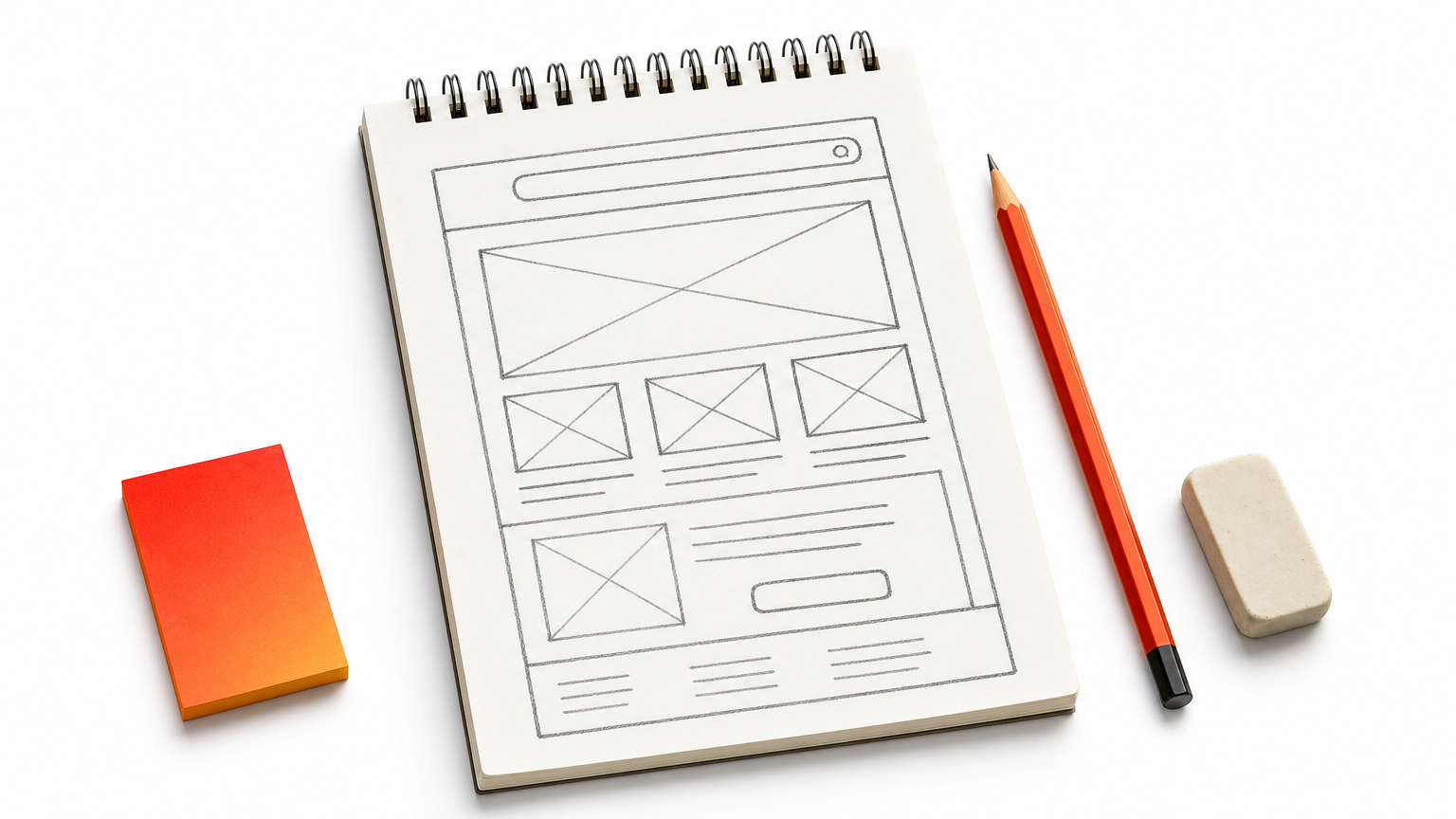
A useful 404 page does five things. Keep it short and cut anything that does not help a lost visitor.
- A plain headline that says the page was not found.
- One sentence explaining that the link may be old or mistyped.
- A search box.
- Three to five links to your most visited pages.
- One call to action, such as a button to your services or contact page.
Keep your normal header and footer so the visitor sees a working site, not an error screen.
Back up and use a child theme
Take a full backup before you edit anything. If you change files in a classic theme, work in a child theme, because a theme update overwrites edits made directly in the parent. Block theme edits made in the Site Editor are stored in the database, so updates do not erase them.
Step 1. Build it in the Site Editor
On a block theme, the 404 template is a normal template that you edit with blocks. Go to Appearance > Editor, open Templates, and select 404. It takes about ten minutes and needs no code or plugin, so this is also the free route.
Open the template and clear the clutter
Menu labels shift slightly between WordPress versions. The steps are the same.
- Go to Appearance > Editor.
- Open Templates (some versions label it Pages and templates).
- Select 404 and click the canvas to edit. If your theme has none, choose Add New Template and pick the 404 option.
- Keep the header and footer template parts. Delete the default "nothing found" text.
Add your content blocks
Insert a Heading block, a Paragraph block, a Search block, a Buttons block, and a Navigation or List block with your top links. A Query Loop set to three latest posts gives visitors something to read. Here is copy you can paste into the blocks:
Headline: We can't find that page
Text: The link may be old or mistyped. Search the site or try one of these pages.
Button: Back to the homepage
Click Save. The change applies to every missing URL on your site immediately.
In a block theme, the 404 template is just another template, so you can design it visually and save.
Step 2. Edit 404.php in a classic theme
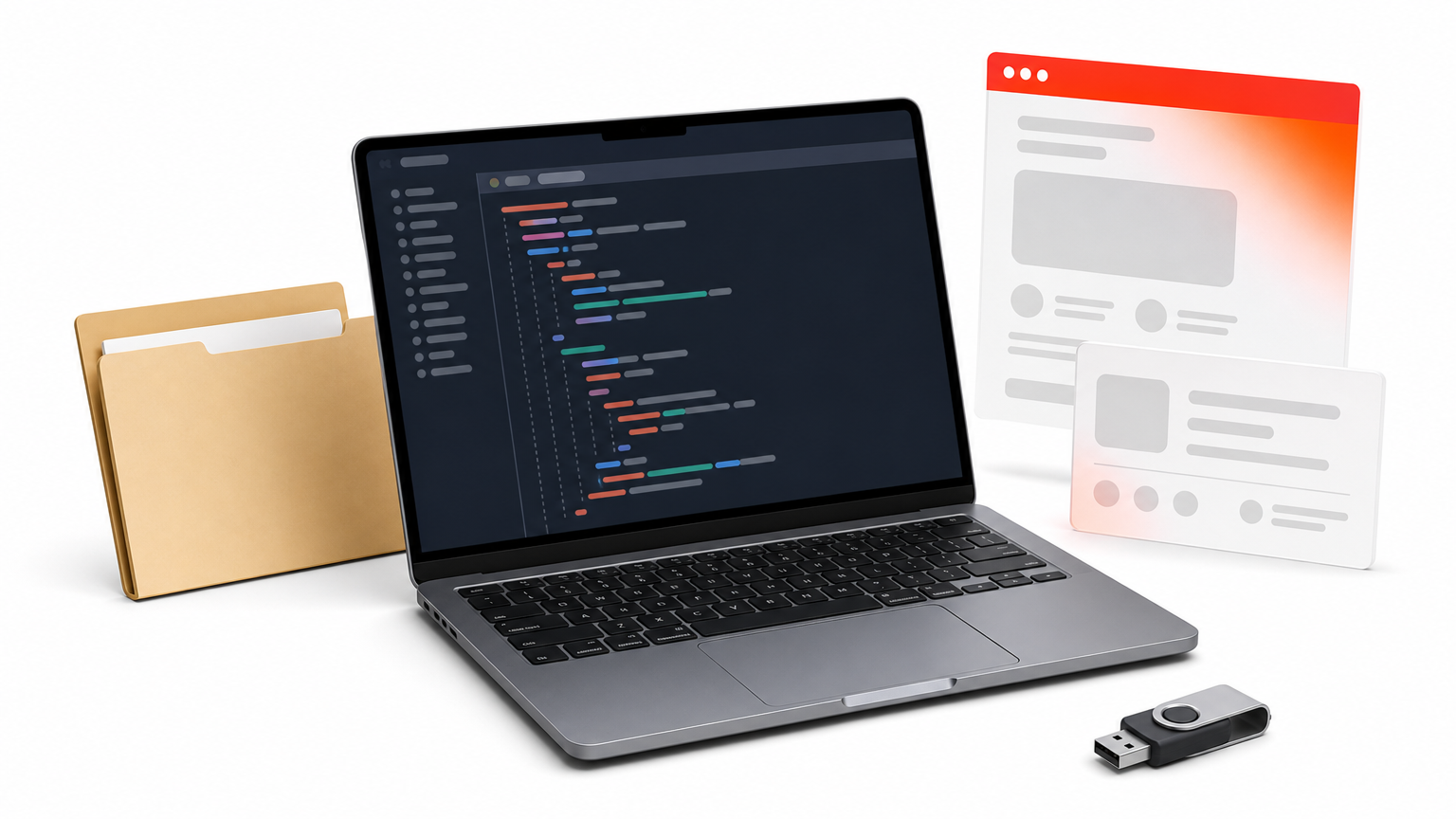
In a classic theme, the 404 page is controlled by a file called 404.php. Copy it into your child theme, edit it there, and WordPress uses your version instead of the parent’s. This is the right method if your theme has no Editor menu.
Create the file in your child theme
Use FTP, your host’s file manager, or a code editor to open wp-content/themes/your-child-theme/. If the parent theme has a 404.php, copy it here. If not, create a new file with that name and paste this template:
<?php get_header(); ?>

<main id="primary" class="site-main error-404">
	<header class="page-header">
		<h1 class="page-title">We can't find that page</h1>
	</header>

	<div class="page-content">
		<p>The link may be old or mistyped. Search the site or try one of these pages.</p>
		<?php get_search_form(); ?>

		<ul>
			<li><a href="<?php echo esc_url( home_url( '/' ) ); ?>">Home</a></li>
			<li><a href="<?php echo esc_url( home_url( '/blog/' ) ); ?>">Blog</a></li>
			<li><a href="<?php echo esc_url( home_url( '/contact/' ) ); ?>">Contact</a></li>
		</ul>

		<?php the_widget( 'WP_Widget_Recent_Posts' ); ?>
	</div>

</main>

<?php get_footer(); ?>
Change the three link paths to match your site. The get_header() and get_footer() calls keep your site’s layout around the content.
Style it to match your site
Plain HTML works inside the PHP file, so you can add your own markup, images, or a button. Put styling for the .error-404 class in Appearance > Customize > Additional CSS. Many themes already wrap the page in their own classes, so inspect an existing page to copy the container width.
Avoid the Theme File Editor for this job. One syntax error there can take your site down, and it offers no undo.
Put 404.php in a child theme, never in the parent, or your design disappears at the next theme update.
Step 3. Use a page builder or a ready-made template
A page builder lets you design the 404 page visually and assign it with a few clicks. In Divi, the Theme Builder handles it, and a ready-made layout cuts the build time further. Other builders and plugins can do the same job.
Set up a 404 template in Divi
- Go to Divi > Theme Builder.
- Click Add New Template.
- Under Use On, open Special Pages and choose 404 Page, then click Create Template.
- Click Add Custom Body and build the page in the Visual Builder.
- Save, then click Save Changes at the top of the Theme Builder.
Leave the global header and footer on the template so the page matches the rest of your site.
Handle Elementor and plugin setups
Elementor’s Theme Builder has an Error 404 template type, but that feature belongs to Elementor Pro. If you use the free version, follow Step 1 or Step 2 instead. Another option is a plugin that lets you pick any normal page as your 404. Confirm that it sends a true 404 status, which Step 4 covers.
Start from a ready-made design
A premade layout saves you from a blank canvas. Check that it was built for your builder and version, uses mobile-friendly sections, and keeps fonts and colors easy to swap. Divi Hat lists 404 pages among its free opt-in layouts. Its hero sections and CTA layouts also work well as the top block of a Divi 404 body. Load the layout from the Divi Library inside your template body, then replace the text and links.

A ready-made layout only needs your copy, your links, and your colors, so don’t design from zero.
Step 4. Test the page and fix the links behind it
A 404 page is only finished when it returns a 404 status code and loads cleanly on mobile. Test it with a made-up URL, check the status code, and then fix the broken links that send people there.
Confirm it returns a real 404
Visit yoursite.com/this-page-does-not-exist-123 in a private window. You should see your new design. Then open your browser’s developer tools, switch to the Network tab, reload, and check that the Status column shows 404, not 200. A custom error page that returns 200 is a soft 404, and Google’s documentation on HTTP status codes explains why that misleads search engines. Also resist redirecting every missing URL to your homepage, because it creates the same problem.
Fix the broken links, not just the page
The template catches lost visitors, but the cause is a bad link. Open Google Search Console and check the Pages report for URLs marked Not found (404). If a deleted page has a close replacement, add a 301 redirect to it. Leave genuinely gone pages as 404s. Then check on your phone that the search box and button are easy to tap.
A custom design is not enough, because the page must also send a real 404 status.
Ship it and check it
Pick the method that matches your theme: the Site Editor for block themes, a child theme 404.php for classic themes, or the Theme Builder if you design with a page builder. Keep the page short, offer search and a few useful links, and confirm the 404 status before you move on.
If you build Divi sites and want a head start on the design, the Divi Hat Membership gives you access to the full library of Divi layouts, hero sections, and CTA layouts. Use them for your 404 page and for every other page on the site.