
To import Divi layouts, unzip your download, then go to Divi > Divi Library > Import & Export in your WordPress dashboard. Upload the layout’s JSON file on the Import tab. Then open any page in the Visual Builder and load the layout with Add Layout > Saved Layout > Use This Layout. The whole process takes a few minutes.
The trouble starts when the import fails or nothing seems to happen. Divi has more than one import tool, and each one accepts only certain files. A layout exported from a single page won’t load through the Library. A Library export won’t load through a page’s Portability window. The result is the error "This file should not be imported in this context," or a layout that sits in the Library but never shows up on your page.
This guide walks through the full process in order. You will check what you have, import the file into the Library, place the layout on a page, and use Portability for page exports. You will also learn how to fix the errors that trip people up. The steps work in Divi 5 and Divi 4.
What you need before you import
You need an active Divi installation, a layout file in JSON format, and a quick check of where that file was exported from. Those three things decide which import method works and save you most of the troubleshooting later.
Check your setup and your file
Divi or the Divi Builder plugin must be installed and licensed, because layouts only work with Elegant Themes’ builder. Layouts from Divi Hat, for example, require your own Divi license, which is sold separately.
Next, look at the file you downloaded. A layout pack usually arrives as a zip archive, and Divi will not accept the zip itself. Extract it first and find the .json files inside. A child theme is a different case. It is normally a zip that you upload under Appearance > Themes, so check the product’s own instructions before you use the layout importer.
Know the three file contexts
Every Divi export records the place it came from, and Divi only accepts it back in a matching place. Open the JSON file in a plain text editor and read the first line to see its context.
| Context in the file | Exported from | Import it in |
|---|---|---|
| et_builder | A single page or post, or a Theme Builder header, body or footer layout | Visual Builder or Theme Builder > Portability |
| et_builder_layouts | Divi Library or Divi Cloud | Divi Library > Import & Export > Import |
| et_theme_builder | Divi > Theme Builder templates page | Same Theme Builder Portability window |
Downloaded layout packs are almost always Library exports. That makes Step 1 the right starting point for most readers.
Read the context line in the JSON file first, because it tells you which import tool will accept it.
Step 1. Upload the JSON file to the Divi Library
Importing Divi layouts starts in the Library, where the file becomes a saved layout that you can reuse on any page. This takes about a minute per file.
Run the import
- Log in to WordPress and go to Divi > Divi Library.
- Click Import & Export at the top of the screen.
- Open the Import tab and click Choose File.
- Select the extracted .json file, not the zip.
- Click Import Divi Builder Layouts and wait for the progress bar to finish.
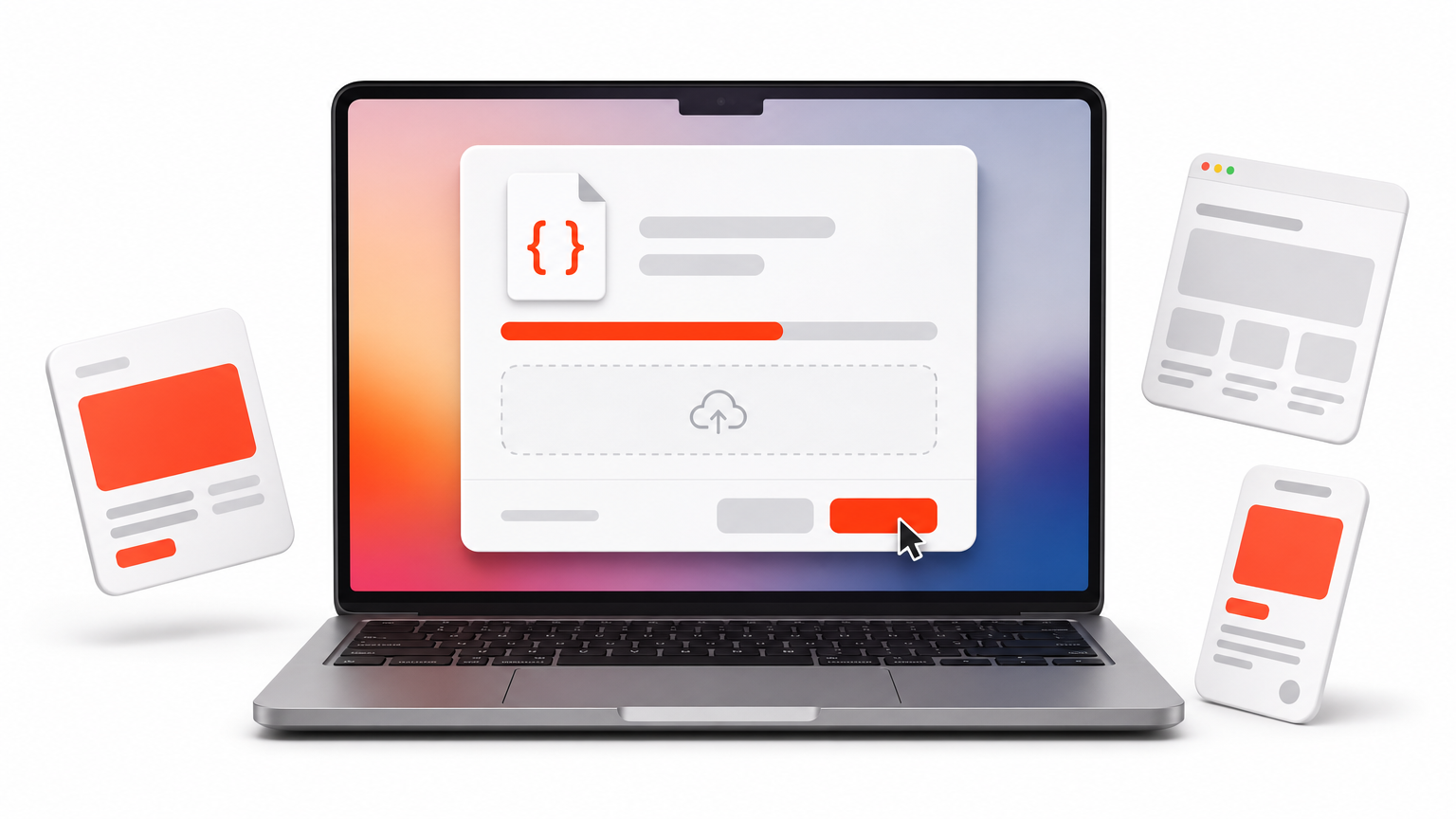
When the import ends, you land back in the Library and the new layout appears in the list. The Type column shows whether it is a layout, section, row or module.
Pick the right file in a multi-file pack
Many layout packs include one JSON file per page plus an all-in-one file that contains the whole set. Import the all-in-one file when you want every page. Import single files one at a time when you only need, say, the homepage. If you are unsure, start with one file. It is easier to add more later than to delete a dozen layouts you do not need.
Divi Hat layouts follow this same route. You log in at divihat.com/login, download the layout from your member account, and import the JSON file through Library Import & Export. The imported design stays fully editable in the Visual Builder.
Import the JSON file, never the zip, and do it from Divi Library > Import & Export.
Step 2. Load the layout onto a page
An imported layout is only stored in the Library until you add it to a page. This step puts it on the canvas where you can edit it.
Add a full page layout
- Open the page, or create a new one, and launch the Visual Builder.
- Click the Add Layout icon in the top left corner.
- Choose Saved Layout and click the layout you imported.
- Click Use This Layout.
If the page already has content, you will see a Replace Existing Content option after you select the layout. Check it to wipe the page first. Leave it unchecked to add the layout below what is already there. Use View Live Demo before you commit if you want a preview of the layout.
Add a single section, row or module
Library items load by context. If you click Add Section and open the Add From Library tab, you only see saved sections. The same applies to rows and modules. If a saved item seems to be missing, check its type in the Library. A row will not appear in the section picker. To change a type, save the element again from the right level.
A layout in the Library is not on your page until you add it with Saved Layout > Use This Layout.
Step 3. Use Portability for page and Theme Builder exports
Portability is the right tool when your file came from a single page, post or Theme Builder layout rather than from the Library. It is also how you move a finished page from one site to another.
Import a page export
Open the target page in the Visual Builder and open the builder’s menu to find the Portability icon, the one with two arrows. Choose the Import tab, select the JSON file and confirm. In Divi 5, the menu layout may look different from Divi 4, but the Import tab works the same way.
For Theme Builder files, go to Divi > Theme Builder, click the Portability icon, and import the file from there. Header, body and footer layouts exported from inside the Theme Builder carry the page context, so they go in through the Portability window as well.
Create a file to move between sites
To copy a page from an old site, open it in the Visual Builder, open Portability, and choose the Export tab. Name the file and click Download Export. Then import that JSON on the new site as above. For a collection of Library items, use Divi > Divi Library > Import & Export > Export instead, and re-import it through the Library.
Match the tool to the file: page exports go through Portability and Library exports go through the Library.
Step 4. Fix common Divi layout import errors
Most failed imports come from four causes, and each has a quick fix. Work through the table from the top.
Match the error to the fix
| What you see | Likely cause | Fix |
|---|---|---|
| "This file should not be imported in this context" | The file’s context does not match the import tool | Read the context line in a text editor and use the matching tool from Step 0’s table above |
| The file will not select or upload | You chose the zip, not the JSON | Extract the zip and pick the .json file |
| Upload stalls or times out on a large pack | Server limits on file size or script time | Import single page files one by one, or ask your host to raise upload and execution limits |
| Layout is in the Library but not on the page | It was imported but never added | Repeat Step 2 |
Skip the setup when time is short
If you would rather not handle the import yourself, Divi Hat offers a Divi Layout Installation service for layouts you already own. It is done within a day, and you supply your Divi license and WordPress or hosting credentials. It covers recoloring, fonts, your logo, social links and an email opt-in form.
Nearly every import error comes down to a context mismatch or the wrong file type.
Import your next layout with confidence
Importing a Divi layout is a short routine. Check the file’s context, import the JSON into the Divi Library, add the layout to a page through Saved Layout, and use Portability only for page or Theme Builder exports. If something fails, the cause is almost always the wrong file or the wrong tool.
Once the process is familiar, the real time saver is a good source of layouts. You can browse ready-made Divi layouts at Divi Hat and import them with exactly the steps above. Each one stays editable in the Visual Builder, so you can start customizing right after the import.