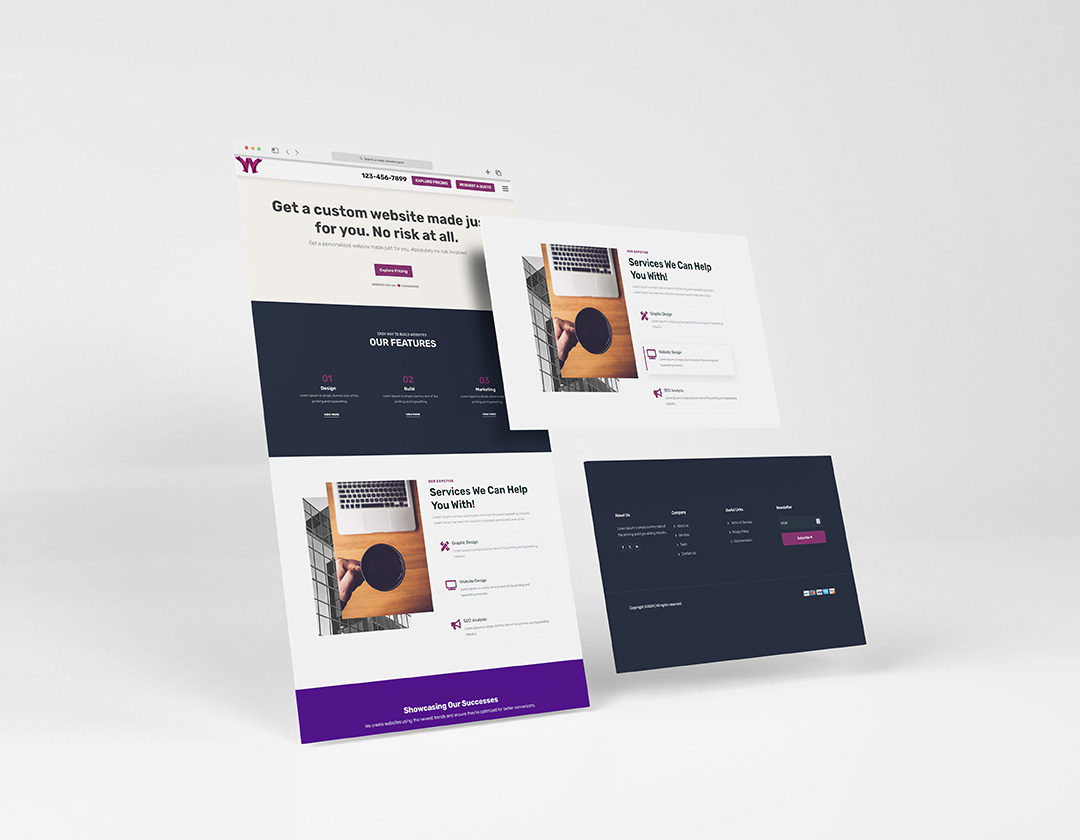

Introduction:
Do you want to give your Divi website a little extra flair by changing the logo when people scroll down the page? It's a cool effect that can make your site stand out. In this easy tutorial, we'll show you how to do it using custom CSS (Cascading Style Sheets). Don't worry if you're not a coding pro; we'll keep it simple.
Step 1: Prepare Your Logo
Before we start, make sure you have two versions of your logo: one for when the page is at the top, and another for when it's scrolled down. These could be different colors, designs, or whatever you like.
Step 2: Access Your WordPress Dashboard
Log in to your WordPress website and go to your dashboard. Then, find and click on "Divi" in the sidebar. This is where you can make changes to your Divi theme.
Step 3: Open Your Theme Customizer
In the Divi settings, you'll find the "Theme Customizer." Click on it. This is where we'll add the code that makes the logo change when scrolling.
Step 4: Go to Additional CSS
Inside the Theme Customizer, you'll see "Additional CSS." Click on it to open the CSS editor. This is where you'll paste the custom CSS code.
Step 5: Add the CSS Code
Now, it's time for the magic! You'll need some CSS code to make the logo change. Here's a simple example:
/* Change logo on scroll */
.et-fixed-header #logo { /* This is the logo at the top */
content: url('URL_OF_YOUR_FIRST_LOGO_IMAGE');
}
.et-fixed-header.et-showing-logo #logo { /* This is the logo when scrolled */
content: url('URL_OF_YOUR_SECOND_LOGO_IMAGE');
}
Replace URL_OF_YOUR_FIRST_LOGO_IMAGE with the web address of your logo image for when the page is at the top. Do the same for URL_OF_YOUR_SECOND_LOGO_IMAGE, but this time it's for when the page is scrolled.
Step 6: Save Your Changes
After pasting the code, click the "Publish" button at the top of the CSS editor. This will save your changes and apply the logo switch effect to your website.
Step 7: Check Your Website
Visit your website to see the logo change in action. Scroll down the page, and your logo should transform when you reach a certain point.
That's it! You've successfully changed your Divi logo when scrolling, giving your website an extra touch of style. Feel free to experiment with different logo versions to create a unique scrolling experience.