
Every website needs an FAQ page, but building one from scratch eats up time you don’t have. You either stare at a blank page trying to guess what visitors will ask instead of learning how to design a good FAQ page, or you copy a competitor’s layout and hope it fits your brand. Neither approach gets you a page that actually looks finished by the end of the afternoon.
That’s where faq templates come in. A solid frequently asked questions template gives you the structure, from accordion-style question lists to categorized layouts, so you just plug in your content and adjust the styling, and it helps to know what FAQ templates actually do for a website before you pick one. No coding, no guessing at spacing or hierarchy, just a working page in under an hour.
This list rounds up nine of the best options available right now, covering Divi layout packs for WordPress builders alongside simpler Word and PDF formats for anyone drafting FAQ content outside a website. Whether you’re a freelancer prepping a client demo or a business owner tackling your own site, you’ll find a ready-made template here that matches your workflow and skill level, plus notes on what makes each one worth downloading.
1. DiviHat Divi FAQ layouts for WordPress sites
If you’re building on WordPress with the Divi theme, skip the generic template hunt and go straight to a Divi FAQ layout built for the platform you’re already using. DiviHat’s library includes pre-built FAQ sections designed to drop into any Divi page without fighting the theme’s module structure or rebuilding accordion logic from scratch. You import the layout, swap in your questions and answers, adjust the colors to match your brand, and you’re done. No plugin conflicts, no custom CSS, no guessing whether a third-party template will actually render correctly inside Divi’s builder.
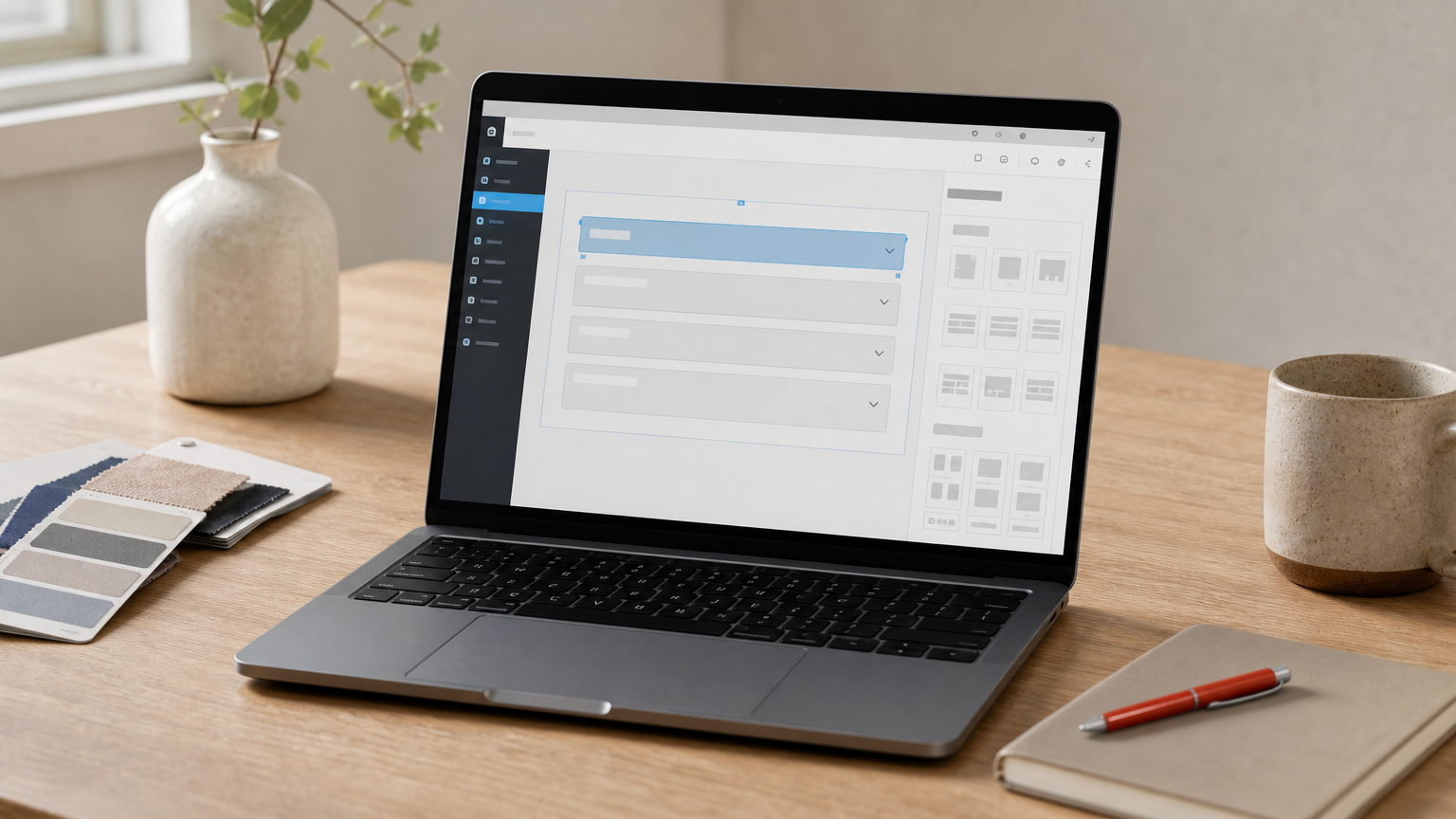
A template built for your exact platform saves more time than a generic one you have to force into place.
What it includes
Each FAQ layout comes as part of DiviHat’s broader collection of ready-made Divi 5 layouts and hero sections, so you’re not just getting a single static page design. You get accordion question lists you can preview live, toggle modules for expandable answers, and category groupings for sites with dozens of FAQs across different topics like billing, shipping, or product support. The layouts are mobile-responsive out of the box, which matters since most visitors checking an FAQ page are doing it from a phone while trying to solve a problem fast. Everything uses drag-and-drop customization, so moving sections around or changing the visual hierarchy takes minutes, not a developer ticket.
Best for
This option fits WordPress professionals who already run Divi and want an FAQ section that looks native to their site rather than pasted in from elsewhere. Freelancers building client demos benefit most here since you can swap a layout into a proposal site in minutes and show a finished-looking page instead of a placeholder. Agencies managing multiple client builds also get value from the unlimited-use licensing, since one purchase covers every project you touch instead of paying per site.
Pricing
DiviHat sells access to the full Divi design library through a membership, currently priced to cover more than 100 layouts, hero sections, and child themes rather than a single one-off download. You can also browse and buy select layout packs or Divi hero section designs individually if you don’t need the whole catalog yet. Every purchase carries a 30-day money-back guarantee, so if the FAQ layout doesn’t fit your build, you’re not stuck with it. Check the Divi FAQ layouts page directly for current pricing and what’s included in the membership tier.
2. Canva FAQ templates
Canva built its reputation on drag-and-drop design, and its FAQ template library extends that same simplicity to frequently asked questions pages and graphics. You pick a template, swap the placeholder text for your own questions, and adjust colors or fonts to match your brand kit. It’s less about building a functional website section and more about designing a visual FAQ graphic, a printable handout, or a slide you can drop into a presentation or social post.
What it includes
Canva offers dozens of frequently asked questions template designs ranging from minimalist single-column layouts to colorful boxed formats with icons next to each question. Most templates come as editable pages you can resize for social media, print, or embedding as an image on a website. You get access to Canva’s stock photo library, icon sets, and font pairings, so a template that started plain can look polished in a few clicks.
A design tool template works best when your FAQ needs to look good as a graphic, not function as clickable website content.
Best for
Canva suits small business owners and marketers who need a quick FAQ graphic for social media, a printed brochure, or a one-off PDF handout rather than a live, interactive website page. It’s not the right pick if you need accordion functionality or SEO-friendly text that search engines can crawl.
Pricing
Canva’s free plan includes a solid range of FAQ templates with basic elements. Canva Pro, priced around $120 per year, unlocks premium templates, more stock assets, and brand kit features for teams building consistent materials across multiple projects.
3. Microsoft Word FAQ templates
Microsoft Word ships with built-in FAQ templates you can find right inside the New Document search bar, no download hunting required. Type "FAQ" into the template search and Word pulls up a handful of pre-formatted document layouts with question-and-answer pairs already styled using heading levels. You fill in your content, adjust the fonts if you want, and export to PDF or print directly. It’s the fastest option if you already have Office installed and don’t want to learn a new tool.

What it includes
Standard Word templates give you a document-based FAQ format with numbered or bulleted question lists, consistent heading styles, and page breaks that keep long answer sections readable. Some templates include a table of contents field that auto-updates as you add questions, which helps for FAQ documents running past a page or two. You also get Word’s built-in styles menu, so reformatting the whole document takes one click instead of manually restyling every heading.
A Word FAQ template works best when your audience needs a printable or emailable document, not a live web page.
Best for
This format suits teams drafting internal FAQ documents, HR departments building employee handbooks, or businesses that need a shareable PDF attachment rather than website content. It’s also a practical starting point if you’re outlining FAQ content before handing it off to a developer for the actual site build.
Pricing
Word templates come free with any Microsoft 365 subscription, which starts around $70 per year for personal use, or through the one-time Office purchase. Free alternatives exist through LibreOffice Writer if you don’t own a Word license.
4. Google Docs FAQ templates
Google Docs handles FAQ documents the same way it handles everything else: free, cloud-based, and built for teams that need to edit together in real time. You won’t find as many built-in FAQ templates as Word offers, but the Google Docs template gallery includes a few starter formats, and thousands more free ones circulate through Google’s own template community and shared drive links. Open one, hit "Make a copy," and you’re editing your own version in seconds without installing anything.
What it includes
Most Google Docs FAQ templates give you a simple document structure with bolded questions, indented answer text, and heading styles that populate an automatic table of contents. Because everything lives in Google Drive, you get real-time collaboration built in, so a support team or client can leave comments directly on specific questions instead of emailing a marked-up PDF back and forth. Version history also means nobody accidentally overwrites someone else’s edits.
A cloud-based FAQ document beats a desktop file whenever more than one person needs to edit or approve the content.
Best for
Remote teams and small businesses without an Office license get the most out of this format, especially when multiple stakeholders need to review FAQ copy before it goes live on a website. It’s also a solid staging ground for drafting content that a designer or developer will later move into an actual page template.
Pricing
Google Docs is completely free with any Google account, and Google Workspace plans, starting around $6 per user monthly, add shared drives and admin controls for larger teams.
5. PDF FAQ templates
Sometimes you need an FAQ document that looks identical no matter who opens it or what device they use. That’s where PDF FAQ templates come in. Sites like Template.net, PDF.co, and Adobe’s own template gallery offer downloadable, print-ready FAQ layouts you fill in using Adobe Acrobat or any free PDF editor. Unlike a Word or Google Docs file, a finished PDF won’t shift its formatting when someone opens it on a different computer, which matters when you’re distributing an official document externally.
What it includes
Most PDF FAQ template packs include a locked layout with fillable form fields, so you can type directly into question and answer boxes without disturbing the design. Expect clean typography, numbered sections, and sometimes a branded header area for your logo. Some templates come with interactive elements like clickable jump links that let readers tap a question and skip straight to the answer, mimicking accordion behavior without needing a website at all.
A PDF template locks your formatting in place so it looks the same on every screen and every printer.
Best for
PDF templates suit businesses distributing official documents, like product manuals, warranty FAQs, or compliance information that needs to stay locked and unchangeable after signoff. They also work well for downloadable lead magnets you email to customers or attach to a support ticket response.
Pricing
Many PDF FAQ templates are free through sites like Canva or Template.net’s free tier. Premium versions with advanced fillable fields or branded designs typically run $5 to $20 per template, or come bundled inside broader subscription plans like Adobe Acrobat’s paid tiers.
6. Excel FAQ templates
Excel feels like an odd choice for FAQ content until you realize how many support teams already track questions in a spreadsheet. An Excel FAQ template turns that habit into something organized, with columns for question, answer, category, and status instead of a messy running list. Microsoft’s own template gallery includes a few starter files, and sites like Vertex42 and Smartsheet offer free downloadable versions built specifically for tracking recurring customer questions alongside internal notes.
What it includes
A typical spreadsheet template gives you sortable columns, so you can filter by department, product line, or how often a question comes up. Some include a priority or status field, useful for support teams deciding which answers need updating first. You also get conditional formatting options, letting you color-code categories or flag outdated entries, plus the ability to export the whole sheet to CSV or PDF once it’s ready for publishing elsewhere.
A spreadsheet works best as your FAQ content’s back office, not its public-facing page.
Best for
This format suits support teams managing a growing question bank internally before publishing any of it externally. It’s also useful for agencies collecting client FAQ content during onboarding, since a shared spreadsheet is easier to fill out collaboratively than a formatted document. Don’t expect this to double as your live website page. You’ll still need to move finished content into a frequently asked questions template built for the web once it’s approved.
Pricing
Excel FAQ templates are free through Microsoft’s gallery and most third-party sites like Vertex42. A Microsoft 365 subscription, needed to edit some advanced templates, starts around $70 per year.
7. HubSpot website FAQ page templates
HubSpot offers free FAQ page templates as part of its broader marketing template library, aimed at teams building an actual live website section rather than a printable document. Unlike Word or PDF options, these templates assume you’re publishing directly to a CMS, either HubSpot’s own CMS Hub or a page you’re mocking up before handing off to a developer. You download the template, which usually comes as an editable HTML/CSS file or a drag-and-drop module inside HubSpot’s own builder, then swap in your brand colors and content.
What it includes
Expect a website-ready FAQ layout with expandable accordion sections, category tabs for grouping related questions, and built-in search functionality on some versions so visitors can filter long lists. HubSpot’s templates also lean on conversion best practices, so you’ll often find a call-to-action block baked into the design, prompting visitors who don’t find their answer to contact support or book a call.
A marketing-platform template earns its keep when your FAQ page needs to convert visitors, not just inform them.
Best for
This option suits marketing teams already using HubSpot for their website or CRM, along with anyone who wants an FAQ page that doubles as a lead-generation tool rather than a static reference page. It’s less useful if you’re not on HubSpot’s platform already, since exporting the design elsewhere takes extra rework.
Pricing
HubSpot’s FAQ templates are free to download from its template marketplace. Using them inside CMS Hub requires a paid plan, which starts around $23 per month for the Starter tier, scaling up from there based on features and contacts.
8. WordPress FAQ plugin templates
Outside the Divi ecosystem, plenty of WordPress sites rely on a dedicated FAQ plugin instead of a page builder layout. Plugins like Heroic FAQs, WP Responsive FAQ, and the FAQ blocks built into the native Gutenberg editor all ship with pre-formatted frequently asked questions template options you activate and fill in. You install the plugin from the WordPress.org repository, drop a shortcode or block onto any page, and the accordion structure, styling, and schema markup come built in.
What it includes
Most plugins bundle several template styles you can switch between with a dropdown, from simple bullet lists to full accordion toggles with icons. Many also generate FAQ schema markup automatically, which helps your questions show up as rich results in Google search. Expect basic color and font controls, though customization stays limited compared to a full page builder layout.
A plugin template handles the FAQ mechanics for you, but it won’t match your site’s design as tightly as a builder-specific layout.
Best for
This route suits site owners running a standard WordPress theme without Divi or another visual builder, especially if search visibility matters more than pixel-perfect branding. It’s a lighter-weight option than installing a full theme just to get FAQ functionality, though child themes built for Divi give you a more cohesive design if you’re rebuilding the site anyway.
Pricing
Most popular FAQ plugins offer a free version through the WordPress plugin directory with core accordion functionality. Premium tiers, usually $20 to $60 one-time or annually, unlock extra templates, advanced schema options, and priority support.
Finding the right FAQ template for your workflow
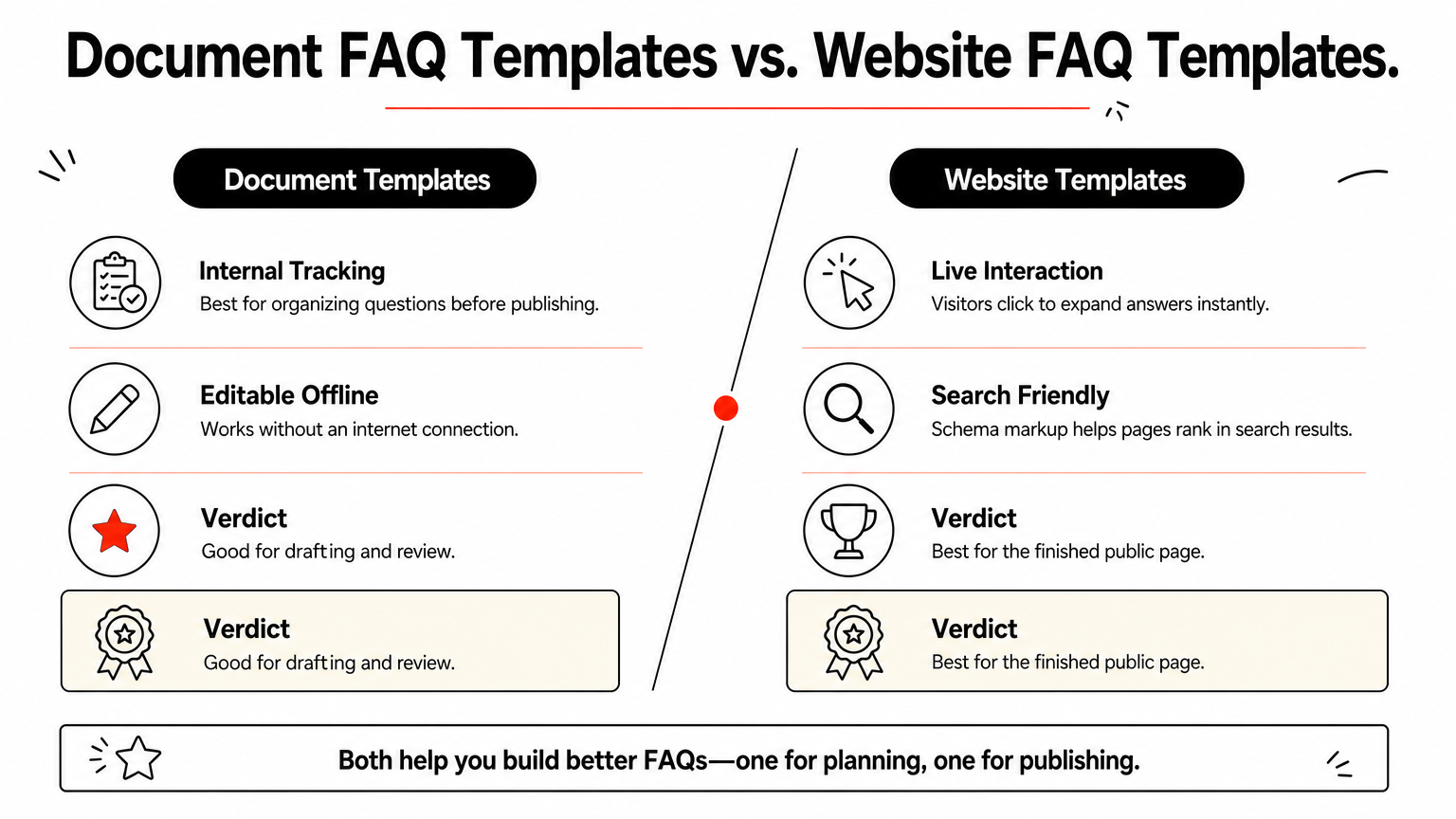
The right faq templates choice depends on where your FAQ content actually lives. A support team drafting content collaboratively should start in Google Docs or Excel, then move the finished copy into a page format once it’s approved. Anyone shipping a live, interactive page needs a template built for the web, not a document format that only looks good on paper.
Given that most FAQ pages end up on a website anyway, skipping the document detour and building directly on your platform saves a step. If your site runs on Divi, that means grabbing a layout designed for the builder you already use instead of adapting something generic. DiviHat’s accordion-style FAQ layouts drop straight into your existing pages, styled and mobile-ready from the start. Browse the full collection of Divi accordion FAQ sections and get your page live today.