
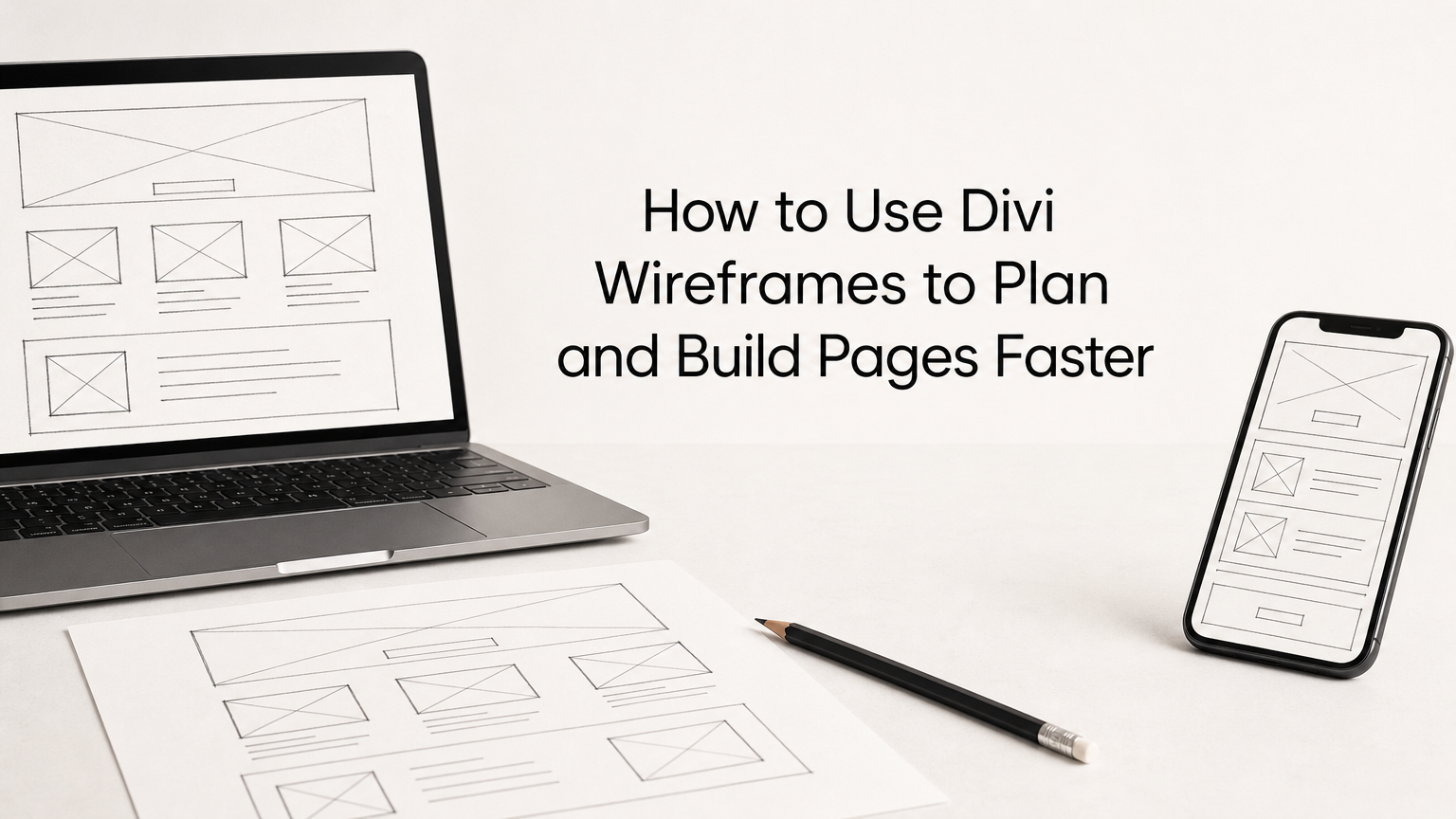
To use Divi wireframes, pick a wireframe layout that matches your page type, import it through the Divi Library, switch the builder to wireframe view to reorder the structure, and then replace the placeholders with your own content. Done in that order, you get from a blank page to a structured draft in well under an hour.
The problem is the blank canvas. Without a structure, you end up tweaking padding on a hero section before you know whether the page needs one. Searching for Divi wireframes also turns up two different things, premade layout kits and the builder’s wireframe view mode, and most guides cover only one of them.
This guide covers both, in four steps. Divi Hat has built websites with Divi for about ten years. You will learn how to choose a layout, import it, restructure it in wireframe view, and finish the page.
What Divi wireframes are and why they save time
Divi wireframes are structural page drafts: boxes for sections, rows, and content with little styling. In Divi the term covers two tools, a built-in wireframe view and downloadable wireframe layouts, and most projects use both.
Two tools with one name
The table shows how the options differ and when each one fits.
| Option | What it is | Best for | Cost |
|---|---|---|---|
| Wireframe view | Builder mode that shows sections, rows, and modules as outlines | Reshaping a page you already have | Included with Divi |
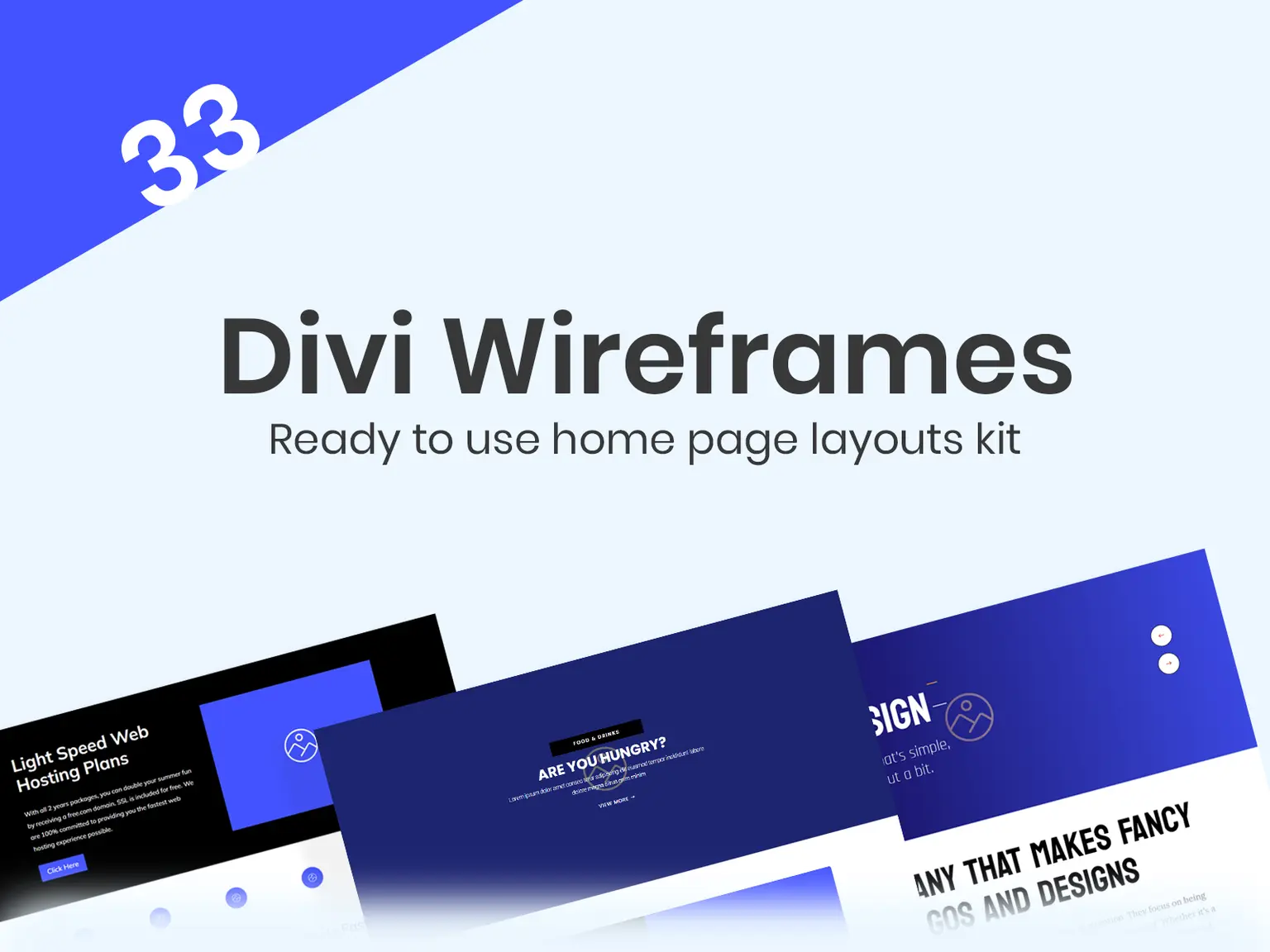
| Wireframe layout kit | Full-page layouts with placeholder content | Starting a page from a proven structure | Divi Wireframe Layouts Kit: $29.99 for 33 layouts |
| Section UI kit | Hundreds of single sections you assemble yourself | Custom pages built block by block | Varies by kit |
Use wireframe layouts to start a page and wireframe view to reshape it.
Are wireframes a waste of time?
No, as long as you keep them rough. The real time sink is polishing a hero section and then learning that the client wants the page order changed. A wireframe layout lets you and the client approve structure and content order first, while changes take minutes. Colors, fonts, and photos come afterward, so rework stays cheap.
Step 1. Choose a wireframe layout for your page
Choose the layout by the page’s job, not by how it looks. A layout that fits the page’s purpose needs far less restructuring later.
Match the layout to the page’s job
Start with what the visitor should do, then pick the structure that leads there:
- Homepage for a local business: hero, services, proof, contact.
- Landing page: one offer and one call to action.
- Portfolio or agency page: work samples first, then process.
- Product or software page: features, pricing, FAQ.
The Divi Wireframe Layouts Kit contains 33 premade layouts across industries such as dentist, lawyer, real estate, restaurant, fitness, SEO, and portfolio. It costs $29.99, allows unlimited website usage, and works only with the Divi theme, so you need your own Divi license.
Check these points before you download
Run any kit, free or paid, through this list:
- It supports your Divi version (Divi 4 or Divi 5).
- The license allows use on client sites.
- The layouts are responsive, so you are not rebuilding tablet and phone views.
- A live preview shows the real structure.
If you expect to need many layouts, a membership may cost less than buying kits one by one. The Standard Yearly Membership is $79.95 and covers all products.
Choose by page type, then confirm the license covers every site you build.
Step 2. Import the layout into Divi
Import the layout through the Divi Library, then load it from "Your Saved Layouts" on a new page. The whole process takes about two minutes. Menu labels can differ slightly between Divi 4 and Divi 5.
Import and load the layout
- Download the kit and unzip it. Divi imports JSON layout files, not the ZIP itself.
- In the WordPress dashboard, go to Divi, then Divi Library, then click Import & Export.
- Open the Import tab, choose the JSON file, and click the import button.
- Create a new page, click Use Divi Builder, and choose Start Building.
- Open the Your Saved Layouts tab and select the imported layout.

Before you touch a live site, take a backup or work on a staging copy. A fresh draft page keeps the experiment away from your published content.
If the import fails
Most failures come from two causes. Either you uploaded the ZIP instead of the JSON file, or your host’s upload size limit is lower than the file. Unzip and import one file at a time. If the error continues, ask your host to raise the upload limit.
Import the unzipped JSON through the Divi Library, never the ZIP.
Step 3. Restructure the page in wireframe view
Wireframe view strips the page down to outlines so you can reorder and trim it quickly. Use it before you edit a single word of copy.
Switch to wireframe view
Open the Visual Builder and click the three dots at the bottom center to open the builder settings. Choose the wireframe icon to see sections, rows, and modules as labeled boxes. The same menu switches back to desktop, tablet, and phone views.
What to change here
Drag sections into the order you want, delete blocks the page does not need, and duplicate the ones it does. Decide the order on paper first. This outline fits most service pages:
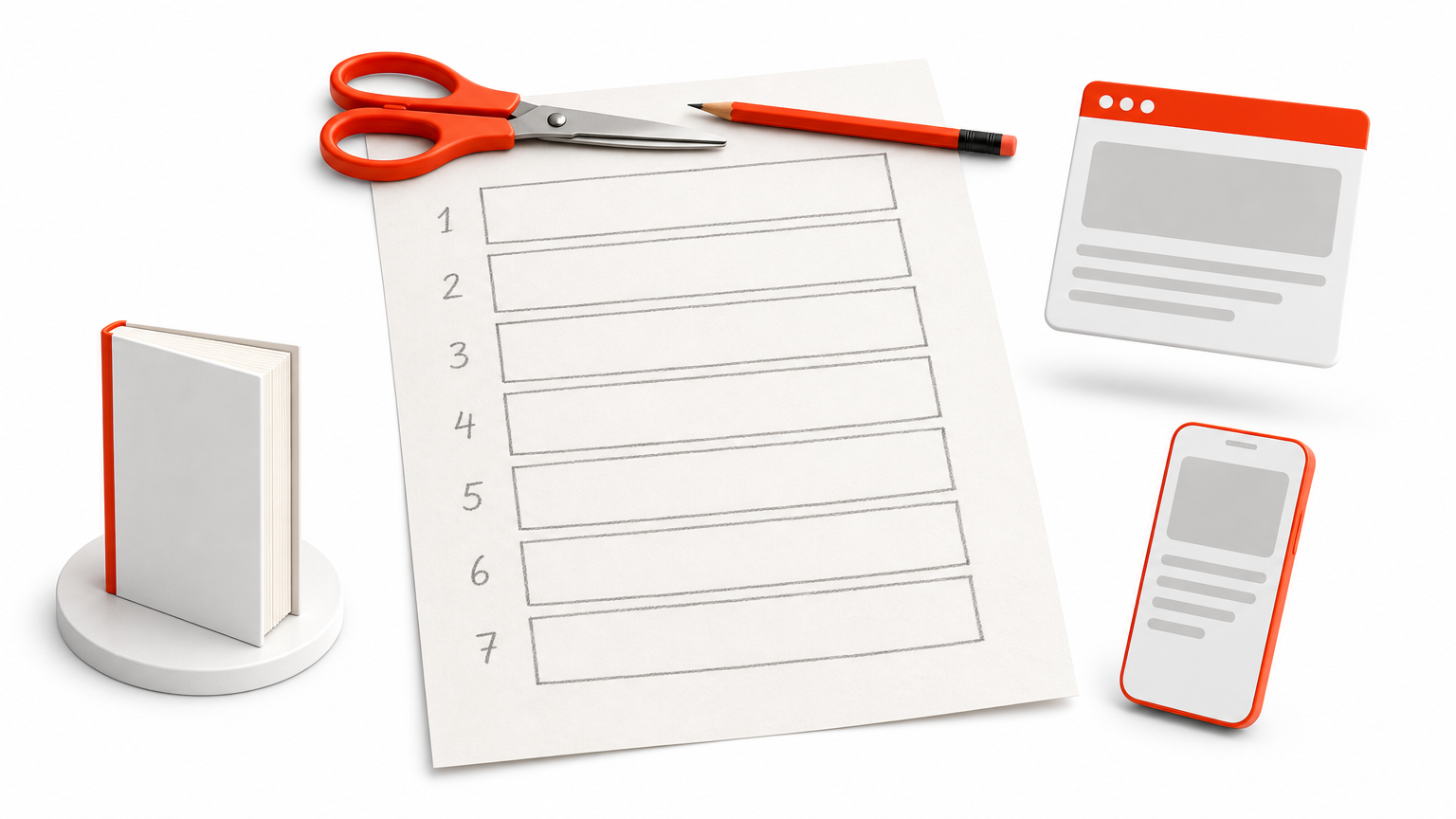
1. Hero: headline, one-line promise, primary button
2. Proof bar: logos or review score
3. Services: three to six cards
4. Process: three numbered steps
5. Testimonials
6. FAQ
7. Final call to action with contact form
Cut anything that does not help the visitor take the next step. A shorter page with a clear path usually beats a long one that wanders.
Fix the order of sections in wireframe view before you write any copy.
Step 4. Replace placeholders and test the page
Finish by swapping in real content, setting your brand basics, and checking every screen size. Do these in order so that you do not repeat work.
Set brand basics first
Set global colors and fonts before editing individual sections, so one change updates the whole page. Then replace headlines and body text, add your own images, and point each button to a real URL. Kits that include royalty-free images, as Divi Hat products do, still deserve a swap for photos of your own work.
Check every device, then publish
Switch the builder to tablet and phone views and look for text that wraps badly, buttons that crowd each other, and images that crop the wrong way. Then:
- Preview the page logged out.
- Click every button and form.
- Run a speed test and compress oversized images, using these Divi SEO speed fixes.
- Publish and request indexing if the page is new.
Brand settings first, content second, device checks last.
Start with structure, then style
Divi wireframes work best as a sequence. Choose a layout by page type, import the JSON file through the Divi Library, reshape the structure in wireframe view, and only then replace placeholders and check each device. Doing the structure first keeps the expensive changes cheap.
If you want a ready starting point, the Divi wireframe layout kit gives you 33 layouts to build from, with unlimited website usage. Pick the layout closest to your next page and work through the four steps above.