
Divi SEO comes down to five jobs. Install one SEO plugin (Rank Math is the best pick for most sites), set Divi’s own SEO options so they don’t clash with it, fix your headings and images, speed the site up, and publish clean metadata, schema, and a sitemap. Divi does not hold your rankings back when you do those five things.
The worry is fair. Divi has a reputation for heavy code, and the theme ships with its own SEO tab that overlaps with every plugin you might add. Then three plugins each claim to be the best. Many site owners end up stacking tools that fight over the same title tag, or they skip the work and blame the builder when pages stall.
This guide walks you through the setup in order. You get the exact menus, a plugin comparison, a metadata example, and the speed targets to hit. Divi Hat has built sites with the Divi theme for about ten years, so the steps reflect what we check on real projects. Work through them on one site, then reuse the routine on every site you build.
Does Divi hurt SEO? What to know before you start
Divi does not hurt SEO on its own, but a careless build can. Google ranks pages on content, links, and page experience. It does not penalize a page for the tool that made it.
Where Divi helps and where it can hurt
The risks are heavy page output, slow loading, and skipped fundamentals such as unique titles and sensible headings. All of them are fixable, and the steps below fix them. Google’s own SEO Starter Guide lists the same basics: clear titles, descriptive links, useful content, and crawlable pages.
Divi gives you the same SEO ceiling as any WordPress site, and your setup decides how close you get.
The performance worry has a real history. Divi 4 stored content in shortcodes and loaded a lot of CSS and JavaScript, which could drag down Core Web Vitals on cheap hosting. Divi 5 is a ground-up rebuild that stores content in a block-based format and was designed to cut that weight. The steps here work on both versions, although some menu labels differ.
What to prepare before Step 1
Spend ten minutes on preparation. You will change settings that affect every page, and you need a baseline to prove the changes helped.
- Admin access to WordPress.
- A full backup, or a staging copy of the site.
- Google Search Console verified for your domain.
- One target keyphrase written down for each page you plan to optimize.
- Your Divi version, plus PageSpeed Insights scores for your homepage and one inner page.
Record the PageSpeed numbers somewhere you can find them. In Step 4 you compare against them, and the baseline is the only way to know whether a setting helped or hurt.
Step 1. Install one SEO plugin
Install exactly one SEO plugin, and make it Rank Math unless you have a reason not to. Divi’s built-in SEO tab covers titles and canonical tags, but it does not handle schema, sitemaps, redirects, or per-page analysis.
Choose between Rank Math, Yoast, and AIOSEO
When people ask for the best SEO plugin for Divi, the practical answer is Rank Math. Its free version adds a Rank Math SEO panel inside the Divi Visual Builder, plus schema, sitemaps, redirections, and a 404 monitor. All in One SEO also integrates with the builder. Yoast works fine, but its panel lives in the WordPress editor screen, so you leave the Visual Builder to use it.
| Plugin | Divi integration | Notable free features | Pick it when |
|---|---|---|---|
| Rank Math | SEO panel inside the Visual Builder, included in the free version | Sitemaps, schema, redirections, 404 monitor, image SEO | You want the most built-in tools without paying |
| All in One SEO | Direct builder integration with real-time analysis | Titles, meta tags, sitemaps (confirm on its plan page which features need Pro) | You prefer its interface or already use it |
| Yoast SEO | Panel in the WordPress editor, outside the Visual Builder | Titles, meta tags, sitemaps, keyphrase and readability checks | Your team already knows it |
All three have free versions and paid upgrades. The free tier of any of them covers every step in this guide, so you don’t need to pay to do Divi SEO properly. Pro tiers add extras such as advanced schema types and extra keyphrases.
One SEO plugin, configured well, beats two plugins fighting over the same title tag.
Install it and run the setup wizard
Follow these steps in order. The wizard takes about five minutes.
- Go to Plugins → Add New Plugin, search for the plugin, then install and activate it.
- Start the setup wizard. If another SEO plugin was active before, import its data so existing titles and descriptions carry over. Rank Math and AIOSEO both include importers for the common alternatives.
- Connect Google Search Console when the wizard asks.
- Switch on the sitemap and schema modules. Leave modules you won’t use switched off.
- Deactivate the old SEO plugin once the import finishes.
Then open any page in the Visual Builder. With Rank Math you will see a Rank Math SEO icon next to Divi’s settings icon. That panel is where you enter the focus keyphrase, SEO title, and description for each page. Treat the colored score as a checklist, not a goal. A green score does not guarantee a ranking, but a red flag on a missing title or description is worth fixing.
Step 2. Configure Divi’s built-in SEO options
Open Divi → Theme Options → SEO and decide who owns your meta tags. With an SEO plugin active, the plugin should own titles and descriptions, and Divi’s tab becomes a fallback you check but rarely change.
Review the Divi SEO tab
The tab has three groups. Homepage SEO covers the site title, tagline, description, canonical URLs, the auto-generation method, and the title separator. Single Post Page SEO applies the same controls to posts and pages. Index Page SEO controls archive pages such as category listings. You can ignore the meta keywords field. Google does not use it for ranking.
Duplicate tags are the common failure here, so verify the output instead of trusting the settings. Open a live page, choose View Page Source, and search for these strings:
<title: you should find one.rel="canonical": you should find one.name="description": you should find one.
If any appears twice, one tool is repeating another. Turn off the overlapping option in the Divi tab or in the plugin until each tag appears once.
Exactly one title, one description, and one canonical tag per page. Anything more is a conflict to fix.
Fix two WordPress settings that Divi sites miss
Go to Settings → Reading and make sure "Discourage search engines from indexing this site" is unchecked. Staging copies often have it ticked, and when the site goes live the box stays ticked. The result is a site that Google is told to ignore, and it’s the first thing to check when a new Divi site never appears in search.
Next, open Settings → Permalinks and choose Post name. That gives you readable URLs such as /divi-seo/ instead of /?p=123. On a site that already has traffic, changing permalinks changes URLs, so add 301 redirects with your plugin’s redirections module before you switch.
Step 3. Build clean headings, images, and links
Every Divi page needs one H1, a logical outline below it, descriptive image alt text, and internal links with meaningful anchors. Divi does none of this automatically, so you set it module by module.
Give every page one H1 and a logical outline
A page should have one H1 that states its topic, then H2s for main sections and H3s for subpoints. In Divi the heading level is a setting, not a default. Modules with titles, such as the Blurb and Call to Action, include a heading level option in their design settings. The Text module lets you format any line as H1 through H6 in the editor.
Ready-made layouts are often designed around appearance. Confirm the heading structure after you import one, because a hero section may use an H2 where you need the H1, or an H3 only because it looks smaller. To check the outline, view the page source and search for <h1 and <h2. Fix the level in the module’s settings, then use Divi’s typography controls to restyle the text.
Choose heading levels for structure, then use typography settings to get the look you want.
Optimize images, URLs, and internal links
Divi makes it easy to drop in dozens of images and links, so apply the same checklist to every page you build:

- Alt text: fill in the Image Alt Text field in the Image module, set it in the Media Library, or add alt text with AI in Divi 5. Describe the image in a short phrase. Leave decorative images empty.
- File names: use descriptive, lowercase names with hyphens, such as
kitchen-remodel-before.jpg, notIMG_4021.jpg. - URLs: keep them short and built around the page’s keyphrase. Skip dates and filler words.
- Internal links: link each new page to two or three related pages, and link to it from at least one older page. Use anchors like "pricing plans", never "click here". Add links in the Text module or the Button module.
Internal links matter more than most Divi builders expect. A page that nothing links to is hard for Google to find and easy to ignore. After you publish a page, spend two minutes adding a link to it from a page that already gets traffic.
Step 4. Speed up your Divi site
A fast Divi site comes from three things: Divi’s performance options, light images, and decent hosting. Your goal is to pass Google’s Core Web Vitals thresholds, which feed into the page experience that Google’s systems reward.
Turn on Divi’s performance options
In Divi 4, go to Divi → Theme Options → Builder → Advanced. There you can enable Dynamic CSS, Dynamic JavaScript Libraries, and Critical CSS, which load only the code a page actually uses. Defer jQuery is also available there. Divi 5 ships with leaner output, and the performance options sit in a similar area under slightly different labels.
Turn the options on one at a time. After each change, clear your cache and test pages with forms, sliders, popups, and menus. Deferring scripts is the setting most likely to break something, and finding that out on a staging copy is far cheaper than finding it on a live homepage.
Your own module choices matter as much as any toggle. Each slider, scroll animation, and background video adds weight. Keep what earns its place, and remove a slider from above the fold if a single strong image and headline would do.
Fix images, hosting, and caching
Images are usually the biggest lever. Take a 2.4 MB hero photo that is 4000 pixels wide. Resize it to 1600 pixels, export it as WebP, and it often drops below 200 KB. That is the same picture at roughly a tenth of the weight, and the hero image is usually the element that sets your Largest Contentful Paint.
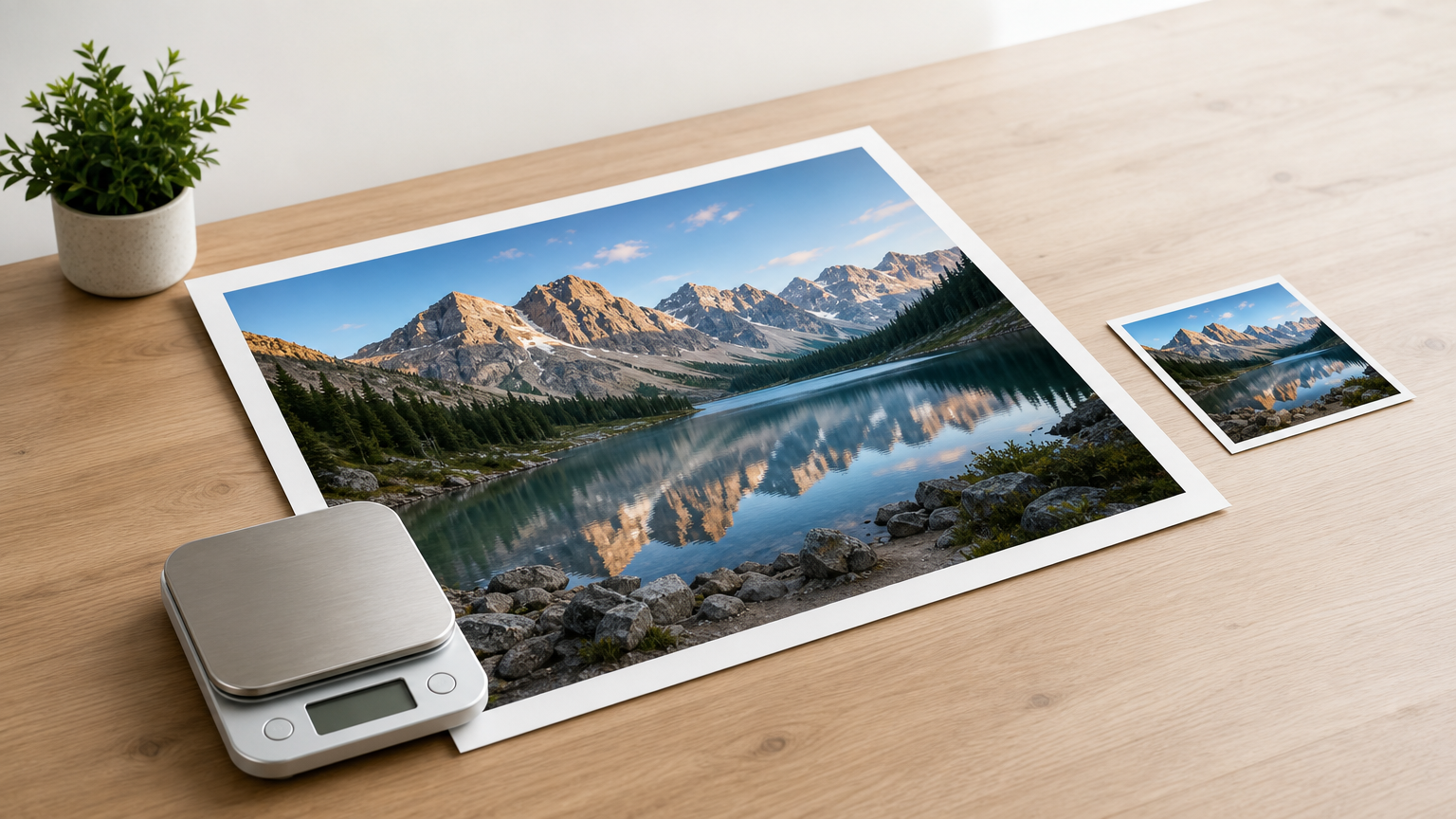
Compress the hero image and fix your hosting before you tune any Divi toggle.
Keep lazy loading for images below the fold, but make sure the hero image itself is not lazy-loaded. Add a caching plugin, enable browser caching, and consider a CDN. If your server responds slowly, no Divi setting will rescue the page, and moving from bargain shared hosting to managed WordPress hosting often helps more than any other change.
Measure with PageSpeed Insights and compare with the baseline you recorded. Use the field data when it’s available, because it reflects real visitors. Google publishes the Core Web Vitals thresholds, and these are the "good" targets:
| Metric | Good score | What it measures | Common Divi fix |
|---|---|---|---|
| Largest Contentful Paint (LCP) | 2.5 seconds or less | How fast the main content appears | Compress the hero image, add caching, upgrade hosting |
| Interaction to Next Paint (INP) | 200 ms or less | How quickly the page reacts to taps and clicks | Remove heavy scripts, limit animations |
| Cumulative Layout Shift (CLS) | 0.1 or less | How much the layout jumps while loading | Set image dimensions, give heroes a fixed height, reserve space for embeds |
Step 5. Add metadata, schema, and a sitemap
The final step tells Google what each page is about and where to find it. Write unique titles and descriptions, let your plugin output schema, then submit a sitemap in Search Console.
Write titles and descriptions that earn clicks
Keep each SEO title to roughly 50 to 60 characters, put the keyphrase near the front, and make every title unique. Write descriptions of up to about 155 characters that say what the visitor gets. Google sometimes rewrites both, as its guidance on snippets explains, but a clear original gives it a good option to use. Enter them in the Rank Math panel (or your plugin’s equivalent) on each page.
Here is a worked example for a made-up freelance bookkeeping site. The pattern is the keyphrase, a hyphen, then the brand.
| Page | Focus keyphrase | SEO title | Characters |
|---|---|---|---|
| Home | bookkeeping for freelancers | Bookkeeping for Freelancers – Ledgerleaf | 40 |
| Services | monthly bookkeeping service | Monthly Bookkeeping Service – Ledgerleaf | 40 |
| Pricing | bookkeeping pricing | Bookkeeping Pricing and Plans – Ledgerleaf | 42 |
A matching home page description, at 141 characters, would read: "Monthly bookkeeping for freelancers: bank reconciliation, invoicing support, and tax-ready reports. See what is included and request a quote."
Add schema and submit your sitemap
Your plugin handles schema once you set the site type and logo in the wizard. Use Article schema for blog posts, and LocalBusiness only if you have a real address and hours. Test pages with Google’s Rich Results Test. Don’t add FAQ markup in hope of a rich result. Google limits FAQ rich results to well-known government and health sites, and you should never mark up content that visitors can’t see on the page.
A sitemap only tells Google your pages exist. Titles, structure, and speed are what earn the ranking.
Then submit the sitemap:
- Open your sitemap in a browser. It is typically at
/sitemap_index.xmlwith Rank Math or Yoast, and at/sitemap.xmlwith AIOSEO. - In Google Search Console, go to Sitemaps, paste the sitemap path, and submit.
- Use URL Inspection on your homepage and two or three key pages, then click Request indexing.
- Check the Page indexing report after about two weeks for pages that Google found but did not index.
Run steps 3 and 4 again whenever you publish something important. If you’d rather hand the work off, Divi Hat also sells SEO packages for freelancers, professionals, and agencies. SEO Starter costs $190 per year and covers 10 pages and 50 keyphrases.
Your Divi SEO routine from here
Divi SEO is five habits, not a one-time trick. Run one plugin, make sure each page outputs a single title, description, and canonical tag, keep your headings and images clean, hold the site to the Core Web Vitals targets, and keep your sitemap and metadata current. Do that and the builder stops being a question mark.
Repeat the checks each time you launch a page, and rerun PageSpeed Insights after adding new modules or plugins. If you build Divi sites for clients, a head start on structure saves the most time. The Divi Hat membership gives you Divi 5 layouts, hero sections, and child themes to start from, with unlimited website usage, so you can spend your hours on the SEO steps above.