
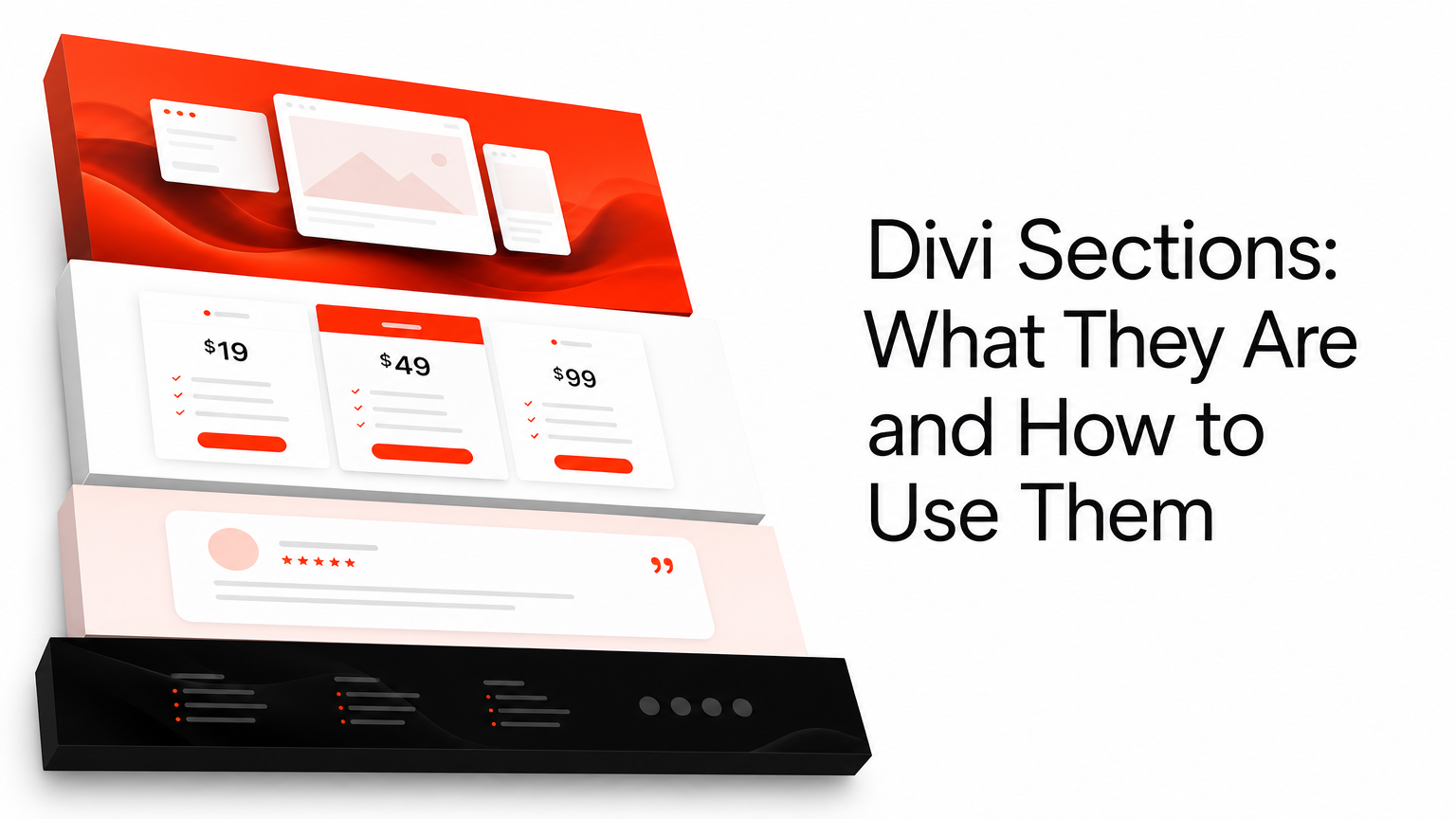
You’re staring at a blank page in the Divi Builder, and the client wants the homepage done by Friday. That’s usually when Divi sections enter the conversation, and if you’ve never used them properly, you’re leaving hours of work on the table every single week.
A Divi section is a modular block of the page, header, body, or footer, that you can save, export, and reuse across any project. Instead of rebuilding a hero area or a pricing table from scratch each time, you drop in a prebuilt layout and adjust the text, images, and colors. This guide explains exactly what sections are, how they differ from rows and modules, and how to import them into your own builder in a few clicks.
Below, you’ll get a practical walkthrough covering the section library inside Divi, how ready-made design assets speed up client demos, and where to find quality options beyond Elegant Themes’ default offerings. We’ll also point you toward curated packs, like the hero sliders and layouts DiviHat builds specifically for professionals who bill by the project, not the hour.
Why Divi sections matter for building better pages
Speed is the obvious win, but it’s not the only reason pros build their workflow around Divi sections. When you’re billing a flat project rate instead of hourly, every minute spent recreating a testimonial slider or a call-to-action block is money you’re not making. A solid section library turns a four-hour homepage build into a 45-minute assembly job, and that math adds up fast across a dozen client sites a year, especially when you combine it with other workflow tricks that cut Divi build time.
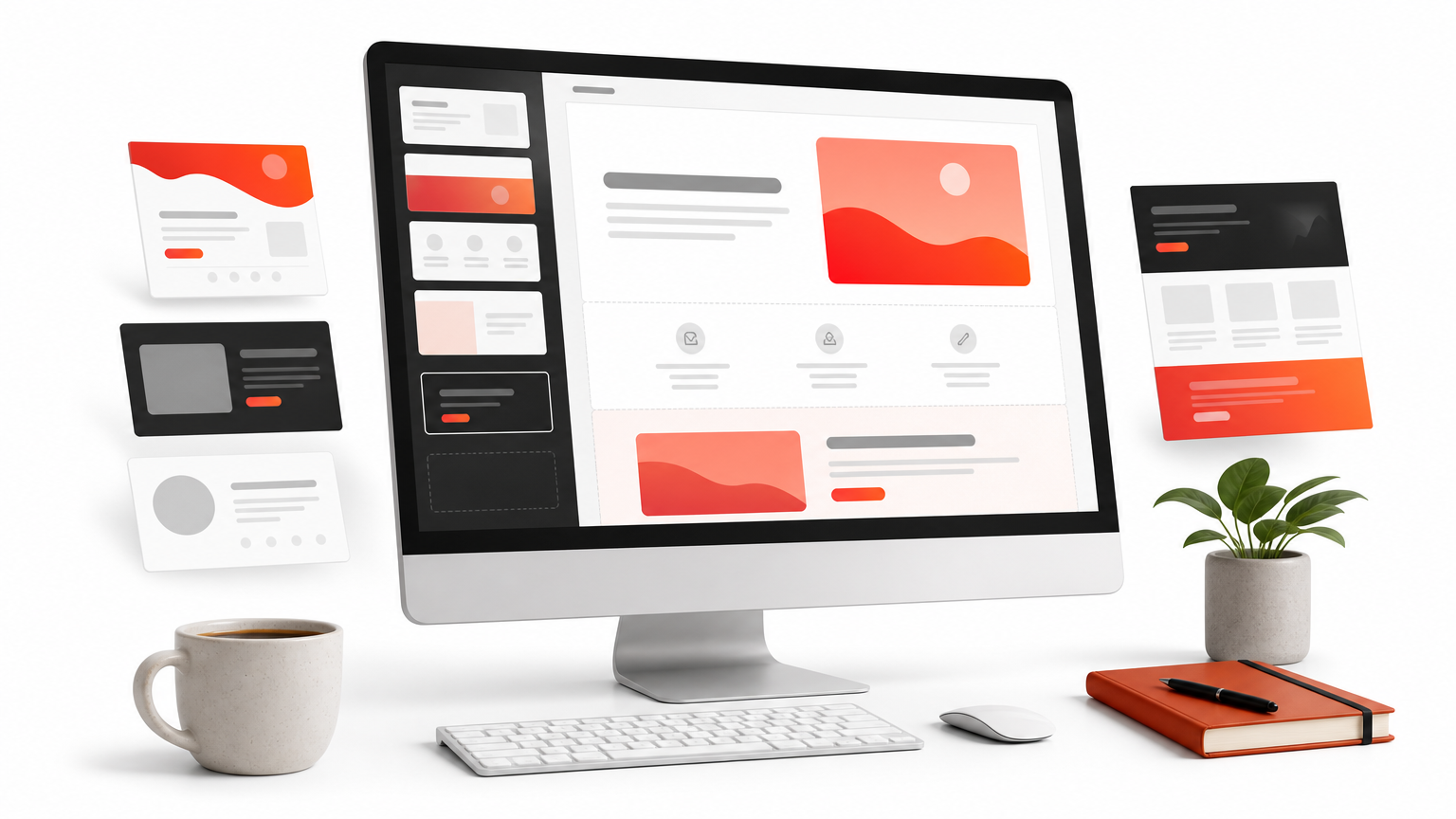
A page built from proven sections looks more polished than one built from scratch under deadline pressure.
Consistency is the second reason, and it matters more than most freelancers admit. Divi’s default library and third-party packs are designed by people who think about spacing, contrast, and mobile breakpoints all day. When you reuse a tested layout structure, you inherit that design discipline instead of guessing at padding values at 11pm. Your header height matches your footer height. Your button styles don’t clash from section to section. Clients notice this even when they can’t articulate why the site feels professional.
There’s also a responsiveness argument that gets overlooked. Divi’s builder gives you desktop, tablet, and phone views, but manually checking every custom section across three breakpoints eats time. Reputable prebuilt sections have already been stress-tested on real devices, so you’re not the one discovering a broken layout on an iPhone during the client walkthrough. Google has repeatedly flagged mobile usability as a factor in how pages perform in search and user experience overall, per its own page experience guidance, so starting from a mobile-safe section isn’t just convenient, it protects your client’s traffic.
Finally, sections give you a shared visual language for pitching design ideas. Instead of describing a hero area in words during a discovery call, you can screen-share three or four section examples and let the client point at what they like. That shortcut alone can cut a design approval cycle from two rounds of revisions to one. Whether you’re building a landing page, a pricing table, or a full homepage, thinking in sections instead of blank canvases changes how fast, and how well, you deliver Divi projects.
How to add and customize a Divi section
Getting a section onto your page takes fewer than sixty seconds once you know where to click. The Divi Builder stores sections separately from rows and modules, so you access them through a dedicated button rather than digging through the module list. Here’s the exact process:
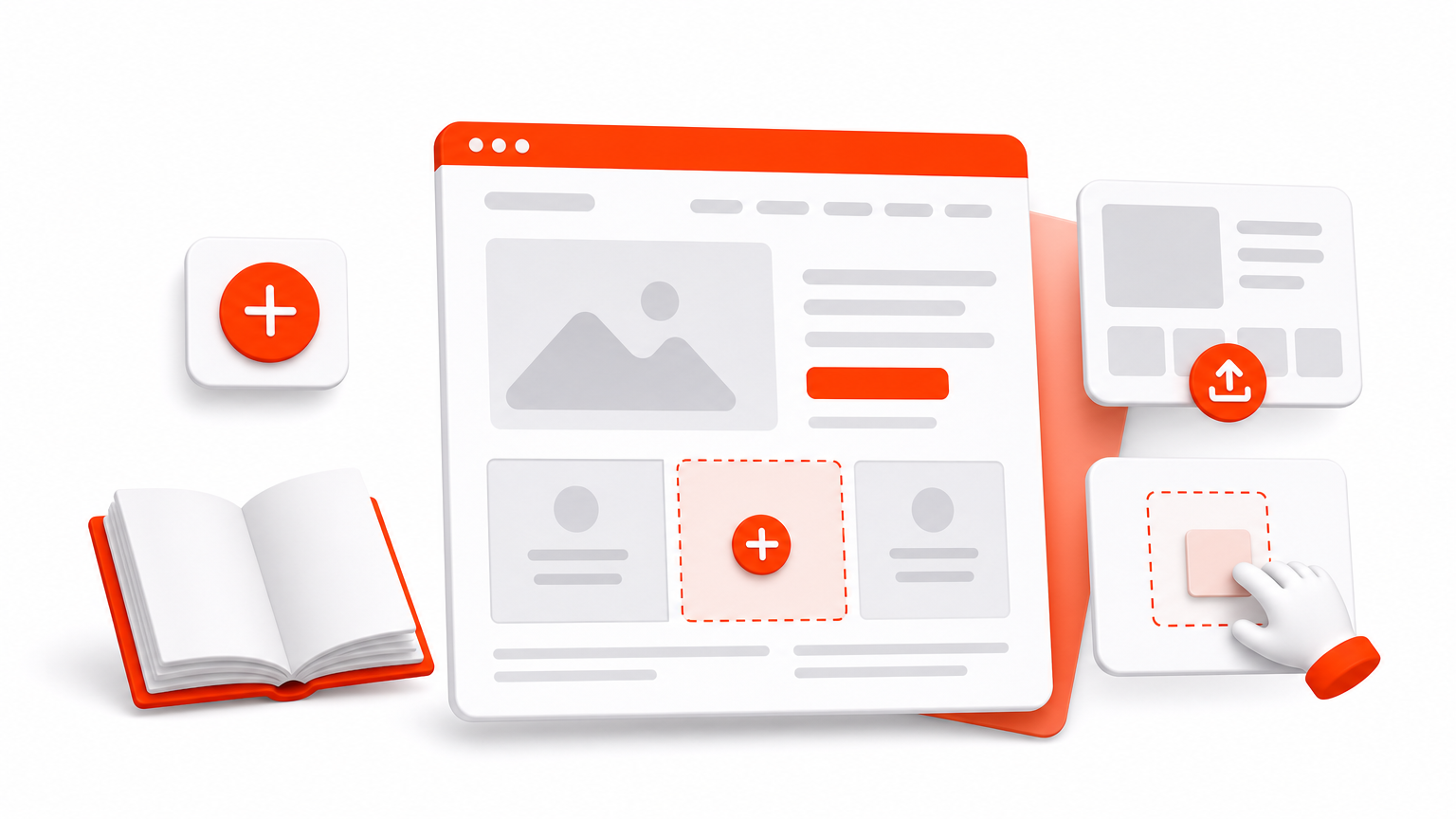
- Open any page in the Visual Builder and click the gray plus icon that appears between existing sections, or at the top of a blank page.
- Choose "Add From Library" instead of building a section manually.
- Search Divi’s default categories, or upload a .json layout file you’ve purchased from a third-party source, following the step-by-step layout import instructions if it’s your first time.
- Drag the imported section into position on your page.
The fastest Divi workflows treat sections as building blocks, not blank canvases.
Customizing colors, text, and spacing
Once a section lands on your page, resist the urge to leave it untouched. Swapping the placeholder text for real client copy is the first job, followed by updating the global color palette so the section matches existing brand fonts and hues. Divi’s Theme Customizer lets you push color and typography changes across every section at once, which keeps a multi-page site visually consistent without editing each block by hand.
Spacing deserves attention too. Reputable section packs ship with sensible padding defaults, but every client’s logo, headline length, and image ratio differs slightly. Check the mobile preview after adjusting padding on desktop, since a fix in one breakpoint sometimes breaks another.
Common types of Divi sections and when to use them
Not every section belongs on every page, and knowing which type to reach for saves you from over-engineering a simple layout. Ready-made Divi hero layouts sit at the top of nearly every page you’ll build, since they carry the headline, subhead, and primary call-to-action that decides whether a visitor scrolls further or bounces. Testimonial sections come next, usually placed mid-page once you’ve made your pitch, because social proof lands better after the reader already understands what you’re selling.
Match the section type to the job it does on the page, not just to how it looks in a preview.
Pricing tables and feature comparisons work best lower on the page, right before one of the pre-designed CTA sections that closes the pitch. Footer sections round things out with contact details, navigation, and legal links, and they’re worth standardizing across a client’s whole site so every page feels connected.
| Section type | Typical placement | Primary job |
|---|---|---|
| Hero | Top of page | Grab attention, state the offer |
| Testimonial | Mid-page | Build trust with social proof |
| Pricing table | Lower page | Present options, drive comparison |
| Call-to-action | Before footer | Convert the visitor |
| Footer | Bottom of page | Navigation, contact, legal |
Quick client demos often hinge on how fast you can assemble a believable draft, so keeping one of the wireframe layouts for planning pages and one polished layout on hand for each of these types means you’re never starting from zero, whether the meeting is in an hour or next week.
Using prebuilt Divi section layouts to save time
Building a section library from scratch takes months of trial and error, which is why most working designers skip that phase entirely and buy one, and it’s worth understanding why paid layouts beat the free ones before you choose. A pack of ready-made Divi 5 layouts gives you dozens of tested hero areas, pricing tables, and footers in a single download, ready to drop into the Visual Builder the same afternoon you purchase it. That’s the entire pitch behind DiviHat’s membership library, which bundles over 100 layouts, hero sliders, and child themes under one license instead of forcing you to piece together assets from scattered marketplaces.
Licensing terms matter more than most buyers realize before their first client dispute. DiviHat’s unlimited usage rights cover client projects, not just your own site, which matters if you’re a freelancer reselling design work rather than building for one company. Royalty-free images bundled into each pack remove another line item from your project budget, since you’re not sourcing stock photos separately for every hero section you build.
A layout pack only saves time if the license lets you actually use it on every project you take on.
Before committing to any pack, run through a short checklist:
- Does the license cover client and multi-site use?
- Are layouts tested across mobile, tablet, and desktop?
- Does the seller offer support if a section breaks after a Divi update?
- Is there a refund window if the style doesn’t fit your niche?
DiviHat checks all four, backed by a 30-day money-back guarantee and priority chat support.
Putting Divi sections to work on your next page
Getting good with Divi sections isn’t about memorizing menus, it’s about building a reflex. Once you know a hero goes at the top, a testimonial builds trust mid-page, and a call-to-action closes things out, you stop staring at blank pages and start assembling proven structures in minutes. Homepages that used to eat a whole afternoon become 45-minute builds, and your clients get a site that feels polished instead of rushed.
None of that happens without a decent library behind you. Whether you’re piecing together your own collection or buying one outright, the license terms and mobile testing matter as much as the design itself. If you’d rather skip the trial-and-error phase entirely, join the Divi Hat membership library of layouts and child themes and get instant access to hero sliders, wireframes, and everything else built for exactly this kind of work.