If you’re evaluating page builders for WordPress, you’ve probably run into the Divi Builder more than once. It’s one of the most popular visual editors on the market, and for good reason, but that popularity also means a lot of confusing or outdated information floats around about what it actually does and what it costs.
Here’s the short answer: Divi Builder is a drag-and-drop visual editor built by Elegant Themes that lets you design entire websites, from headers to footers, without touching code. You edit content directly on the page, see changes in real time, and pull from a huge library of modules and layouts to speed things up. Pricing runs through yearly or lifetime access, and it works as both a standalone plugin and the foundation of the full Divi theme.
In this article, we’ll break down exactly how Divi Builder works, what it costs, and whether it’s worth using in 2026. We’ll also touch on how pre-built layouts and design assets, like the ones we build here at DiviHat, can cut your build time down even further once you know your way around the interface.
Why the Divi Builder matters for WordPress site owners
Every WordPress site owner eventually faces the same choice: hire a developer, learn to code, or find a tool that closes the gap. The Divi Builder exists to close exactly that gap, and that is a big part of why designers use Divi Builder for professional websites. It turns website design into a visual, hands-on process where you click an element, type your text, drag it where you want, and see the result instantly, no PHP or CSS required unless you want to dig deeper.
The Divi Builder turns website building into a visual conversation with your content, not a coding exercise.
Democratizing web design for non-coders
Business owners running a landing page for their consulting practice don’t want to learn a templating language. Freelancers juggling five client sites in a week don’t have time to hand-code a hero section from scratch. The visual editing interface in Divi Builder puts full design control in front of anyone willing to click around for an afternoon. You see your actual homepage rather than a code editor, and every change appears in the same window you’re working in, which is the definition of a true WordPress page builder experience, something worth understanding alongside how a page builder differs from a theme builder. That immediacy is why so many small business owners manage their own sites for years without ever opening a code file.
Cutting production time and cost
Speed is the other half of the story. A freelance web designer billing by the project cares about how many billable hours a homepage eats up. Coding a responsive header and a set of content sections from zero can take a full day even for an experienced developer. With Divi Builder, that same structure comes together from pre-made modules and rows in a fraction of the time, because you’re arranging existing building blocks instead of writing every line yourself.
| Task | Coding from scratch | Divi Builder |
|---|---|---|
| Build a responsive header | 2-4 hours | 15-30 minutes |
| Add a hero slider section | 3-5 hours | 20-40 minutes |
| Style for mobile devices | 1-3 hours | Built-in responsive controls |
| Launch a full 5-page site | 1-2 weeks | 2-4 days |
Those numbers shift depending on complexity, but the pattern holds across most Divi workflows for web design agencies: less time on repetitive structural work means more time for strategy, content, and client relationships, the parts of the job that actually pay well.
Consistency across client projects
Agencies juggling multiple client sites need repeatable systems, not one-off solutions. Once you build a module or section you like in Divi Builder, you can save it to your personal design library and reuse it on the next project in a few clicks. That consistency matters when you’re trying to deliver the same quality bar across ten different websites without starting from zero every time. It’s also why libraries of pre-built Divi layouts, like the ones available through DiviHat, have become a standard part of many agency toolkits: they skip the assembly step entirely and let you jump straight to customization.
A tool built around ownership, not lock-in
Unlike some page builders that trap your content in proprietary shortcodes, Divi Builder outputs content in a way that stays reasonably portable, and Elegant Themes has kept the plugin under active development for well over a decade. That track record matters if you’re choosing a page builder you’ll depend on for years of client work, not just the current project. Longevity and steady updates reduce the risk of picking a discontinued tool, which would leave you rebuilding every site from scratch down the road.
How to build a page with the Divi Builder
Opening the Divi Builder for the first time feels less like software and more like editing a document. You click a green plus icon, the page loads a blank canvas, and from there you’re stacking sections the same way you’d stack blocks. There’s no separate admin screen to configure before you see results, which is exactly the point: the interface disappears and your actual page takes over the screen.
Starting from scratch or a layout
When you launch the builder on a new page, Divi asks whether you want to build from scratch, choose a premade layout, or clone an existing page. Picking a premade layout drops in a complete design, header through footer, that you then edit in place. This is where a lot of professionals skip straight past the blank-canvas stage entirely and start with a finished layout pack instead, since editing existing text and images is faster than assembling rows from nothing.
Working inside the Visual Builder
Once you’re in the Visual Builder, every element on the page is clickable. Click a headline and a text panel opens for editing copy, fonts, and color. Click a button and you get spacing, hover states, and link settings in the same panel. The basic workflow looks like this:
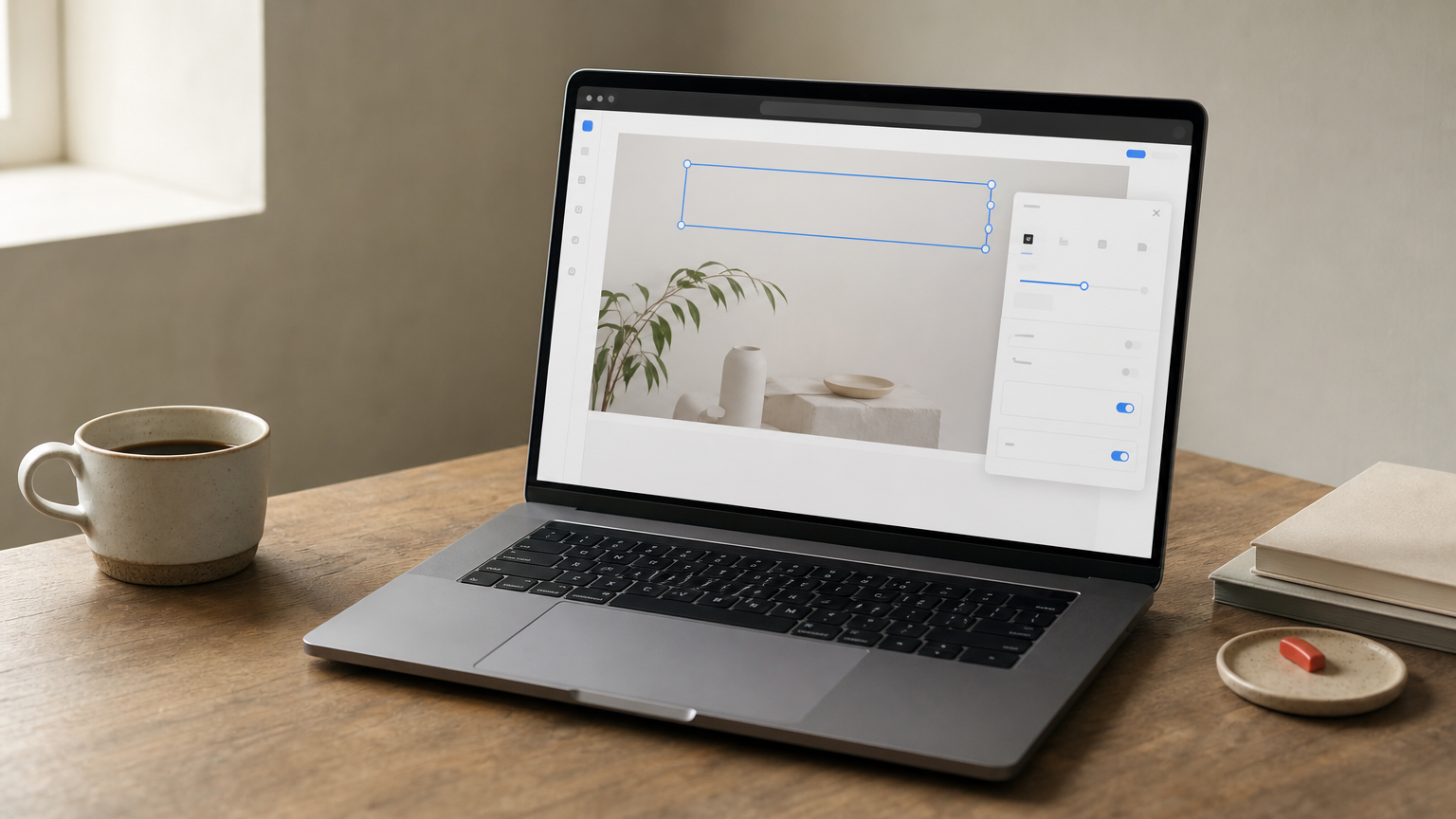
- Add a section to define a horizontal band of the page.
- Insert a row inside that section to set your column structure.
- Drop a module, like a text block, image, or slider, into a column.
- Click any module to open its settings and adjust content, design, and advanced options.
- Preview on desktop, tablet, and phone views using the responsive icons at the bottom toolbar.
You’re never more than one click away from editing exactly what you see on the page.
That last step matters more than most beginners expect. A layout that looks perfect on a widescreen monitor can break on a phone, and Divi Builder’s built-in responsive design controls let you fix spacing, font size, or visibility per device without writing a single media query.
Saving your work as you go
Regularly saving your work protects hours of effort, since the builder autosaves periodically but browser crashes and spotty connections still happen. Divi keeps a revision history you can roll back through if you make a change you regret, which functions like an undo button that reaches back days instead of seconds.
Reusing what you build
Getting a section exactly right once means you shouldn’t have to build it again. Divi Builder lets you save any section, row, or module to your library with one click, then load it onto a different page or a different website entirely. Professionals who build client sites daily lean on this constantly, and it’s the same principle behind ready-made asset libraries: build once, deploy everywhere, and spend your remaining time on the details that actually change from client to client.
Sections, rows, columns, and modules explained
Every page you build in Divi Builder is made of four nested layers: sections, rows, columns, and modules. Sections stack vertically down the page, rows live inside sections to define column structure, columns divide a row into vertical slices, and modules drop into columns to hold your actual content. Grasping this hierarchy early saves you from the confusion that trips up most beginners, because almost every layout problem you hit later traces back to one of these four levels.
Master the section-row-column-module hierarchy and the rest of Divi Builder starts making sense on its own.
Sections set the horizontal structure
Think of a section as one horizontal band of your page, like the header banner, a testimonials strip, or the footer. Each section carries its own background settings, whether that’s a solid color, an image, a video, or a gradient, plus its own spacing controls for padding above and below. Regular sections stretch the full width of your layout, while specialty sections split into sidebar-style structures built for blog and archive pages. Stacking five or six sections top to bottom is how most homepages come together, each one handling a distinct job like introducing the brand, showing services, or collecting an email signup.

Rows and columns control layout
Inside every section sits at least one row, and every row defines how many columns split that horizontal space. Divi ships with dozens of preset column structures, so you’re rarely stuck building a grid from scratch, and the Divi 5 CSS Grid editor handles the cases where presets aren’t enough.
| Row structure | Common use |
|---|---|
| 1 column | Full-width text or image |
| 2 columns (1/2 + 1/2) | Text next to image |
| 3 columns (1/3 each) | Feature highlights |
| 4 columns (1/4 each) | Icon grid or team members |
| Uneven splits (1/4 + 3/4) | Sidebar layouts |
Columns handle their own padding and can be reordered without touching a single module inside them, which matters when a client asks to swap the image and text sides on a two-column layout at the last minute.
Modules are where content lives
Modules sit one level deeper than columns, and this is where the actual content appears: headlines, paragraphs, images, buttons, sliders, forms, testimonials, and dozens more. Divi Builder ships with dozens of built-in content modules covering nearly every content type a website needs, from simple text blocks to full pricing tables and countdown timers. Opening any module reveals a settings panel with three tabs, content, design, and advanced, so you can adjust the text itself, the visual styling, and things like custom CSS or visibility rules from one place. Nesting modules inside columns inside rows inside sections gives you granular control over every pixel without ever opening a separate stylesheet, and once you’ve internalized that structure, reading someone else’s Divi layout file becomes almost as easy as reading your own.
Divi Builder pricing and plans
Unlike most WordPress page builders that sell a single plugin, Elegant Themes bundles Divi Builder with the full Divi theme, Divi AI, and a handful of other products under one membership pricing model, which is why the question of how much the Divi page builder costs rarely has a one-line answer. You’re not just buying a builder, you’re buying access to an entire ecosystem that includes the Divi theme, the Extra theme, Bloom for email opt-ins, and Monarch for social sharing, all covered under the same plan. That bundling confuses a lot of first-time buyers who expect a single, standalone product with a single price tag.
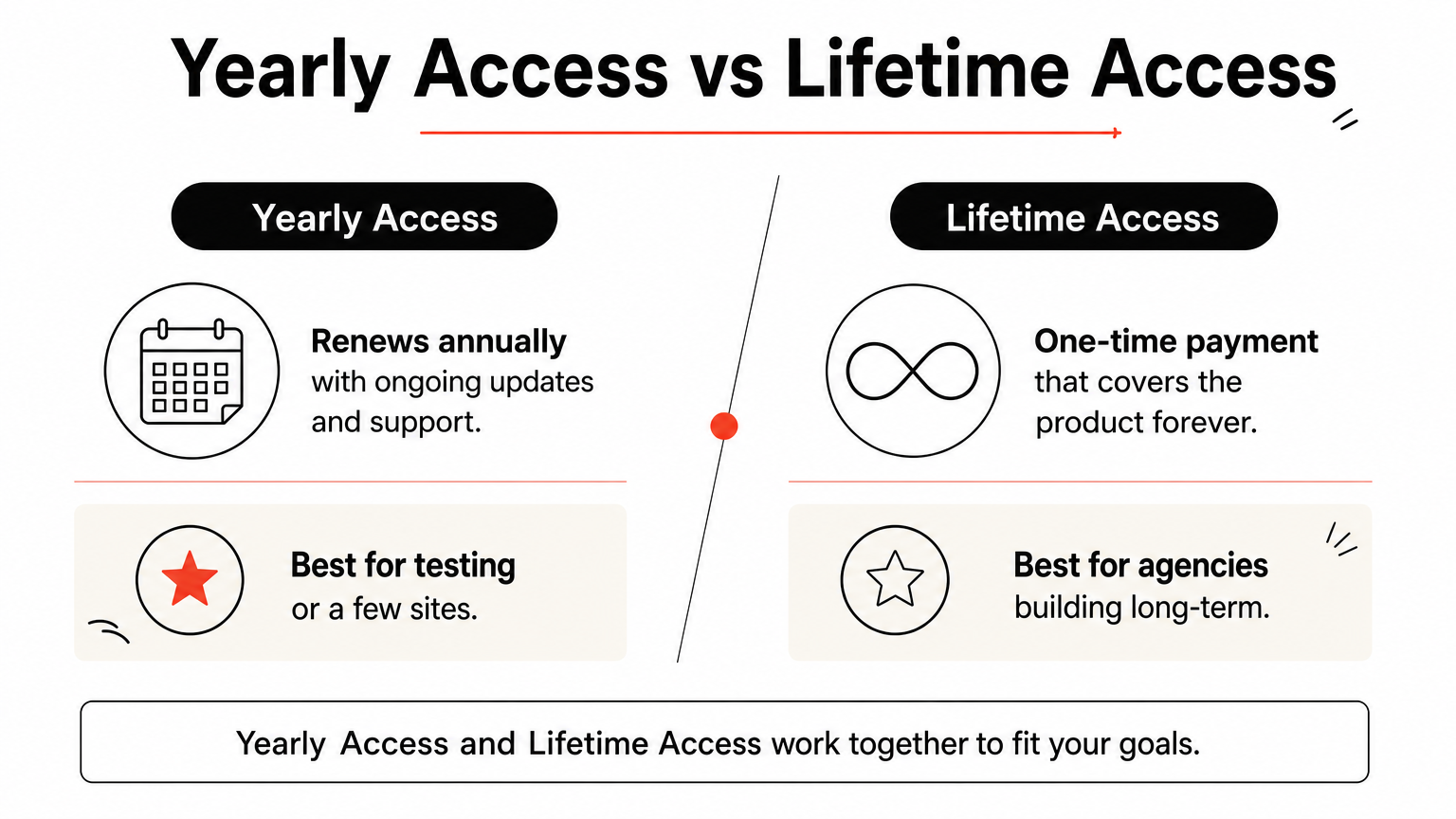
Yearly Access vs Lifetime Access
Elegant Themes keeps the decision simple: you choose between a recurring yearly subscription or a one-time lifetime access payment. The subscription renews annually and includes ongoing updates and support for as long as you keep paying, while lifetime access is a single upfront cost that covers the product forever, no renewal required.
| Plan | Payment structure | Best for |
|---|---|---|
| Yearly Access | Paid annually, renews automatically | Buyers testing the platform or managing a small number of sites |
| Lifetime Access | One-time payment, no renewal | Agencies and freelancers building sites long-term |
Paying once for lifetime access almost always beats years of renewals if you plan to use Divi Builder beyond a couple of projects.
Exact dollar amounts shift with occasional sales and promotions, so check Elegant Themes’ official pricing page and the current Divi discounts and deals before you buy rather than relying on a number you saw in an old blog post.
What you get at each tier
Both tiers unlock the same core software, meaning you’re not paying more for extra features at the higher price point. What changes is the billing structure, not the toolset. Every plan includes:
- Unlimited website usage across your own sites and client projects
- Access to the full Divi theme and the standalone Divi Builder plugin
- The Divi AI writing and image tools bundled into the builder interface
- Premium support and access to the layout library inside the builder
- A 30-day refund window if the product doesn’t fit your workflow
That unlimited-site clause matters more than most buyers realize upfront. Agencies running ten or twenty client sites don’t pay per install, which is a real advantage over builders that charge per domain.
Where DiviHat membership fits in
Buying Divi Builder gets you the engine, but it doesn’t hand you finished, polished layouts ready to launch. That’s the gap a DiviHat membership fills, giving you over 100 premium layouts, ready-made Divi hero sliders, and child themes to drop straight into projects you’re already building with the core plugin. Pairing the two keeps your monthly or annual cost predictable while cutting the actual design work down to editing text and swapping images instead of assembling every section from a blank canvas.
Divi Builder pros and cons
No tool is perfect for every job, and Divi Builder has real tradeoffs worth weighing before you commit a client’s website to it. Knowing the weak spots ahead of time saves you from discovering them mid-project, when switching tools costs far more than reading a comparison table or a Divi vs Elementor breakdown would have.
What makes Divi Builder worth it
Users consistently point to the same handful of strengths, and most of them hold up under real-world use rather than marketing copy. The visual editing experience remains the single biggest draw, since seeing your actual page update in real time beats guessing how a shortcode will render.
- True front-end editing with no separate preview step needed
- Unlimited website usage on one license, ideal for agencies
- Massive module library covering nearly every content type
- Active development with a track record spanning over a decade
- Responsive controls built into every element, no custom CSS required
- Reusable library for saving sections, rows, and modules across projects
A tool that keeps updating for over a decade earns trust that a flashy new builder hasn’t proven yet.
Where Divi Builder falls short
Flip the coin and a few consistent complaints show up across reviews and forums. Performance is the one that comes up most: Divi Builder generates more markup and CSS than a hand-coded page, which can slow load times if you don’t optimize images and enable caching. Pricing structure trips up beginners too, since the bundle model means you’re paying for Divi AI, Bloom, and Monarch whether you use them or not. Steeper learning curve is fair criticism as well; the sheer number of settings panels overwhelms someone who just wants to publish a five-page brochure site by Friday.
| Strength | Weakness |
|---|---|
| Real-time visual editing | Heavier page weight than custom code |
| Unlimited site usage | Bundle pricing includes tools you may not need |
| Huge module and layout library | Learning curve for full customization |
| Reusable design library | Occasional plugin conflicts on older sites |
| Frequent updates | Requires ongoing caching/optimization habits |
Who should use it and who should skip it
Freelancers and agencies building multiple sites a year get the most value here, since the unlimited licensing and reusable library pay for themselves fast. Owners of a single small business site might find the price and learning curve harder to justify unless they plan to keep tweaking the site themselves for years, which is really the heart of the question of whether Divi 5 is worth the investment. Skipping Divi Builder makes sense if your site needs extreme page-speed optimization above all else, like a high-traffic e-commerce store where every kilobyte counts, though pairing it with proper caching and a lean set of modules closes most of that gap anyway. Weighing these tradeoffs against your actual workload, rather than a generic recommendation, is the fastest way to know if it’s the right page builder for your situation.
Tips to speed up your workflow in Divi Builder
Speed comes from habits, not just familiarity with the interface. Once you’ve built a handful of pages in Divi Builder, small workflow changes start saving you real hours every week, especially if you’re juggling multiple client sites at once. The tips below, along with these time-saving tips for Divi web designers, come from patterns that show up again and again among freelancers and agencies who use the builder daily rather than occasionally.
Learn the keyboard shortcuts
Memorizing even five or six shortcuts cuts down on constant mouse trips to the settings panel. Copying and pasting a module with a shortcut instead of right-clicking through a menu sounds minor until you’re doing it fifty times on a single page.
| Action | Shortcut |
|---|---|
| Copy element | Ctrl/Cmd + C |
| Paste element | Ctrl/Cmd + V |
| Undo | Ctrl/Cmd + Z |
| Save page | Ctrl/Cmd + S |
| Duplicate element | Ctrl/Cmd + D |
Shortcuts turn repetitive clicking into muscle memory, and muscle memory is where real speed lives.
Build a personal library early
Grabbing a section you like and saving it to your library the moment you finish it beats trying to remember which old project it lived in six months later. Divi’s library search makes reuse painless once you’ve stocked it with a few dozen sections, rows, and modules you’re proud of. Treat this library as a living asset, not a one-time backup, and it grows into the fastest shortcut you have.
Use global elements and styles
Global modules update everywhere they’re used the instant you edit one instance, which matters enormously for repeated elements like a footer contact form or one of your Divi call-to-action sections. Setting your global colors and fonts once at the start of a project, rather than adjusting them section by section, keeps a whole site consistent and saves you from a tedious find-and-replace exercise later if the client changes their brand color.
Start from finished layouts instead of blank sections
Here’s a step-by-step to make new projects move faster from day one:
- Import a pre-built layout pack rather than opening a blank page.
- Swap placeholder text and images for the client’s real content first.
- Adjust global colors and fonts to match the brand.
- Fine-tune spacing and responsive settings last, once content is locked.
- Save any new sections you created back to your library for the next project.
Most of the time you save in Divi Builder comes from skipping the assembly stage entirely, which is how a full Divi website gets built in 24 hours with pre-made layouts. That’s exactly why a DiviHat membership pays off fast: you’re pulling from over 100 finished layouts, hero sliders, and ready-made Divi child themes instead of stacking rows from a blank canvas every single time. Reserving your actual design time for the customization that makes a site feel custom, rather than the mechanical setup work, is the difference between a project that takes days and one that stretches into weeks.
Where to go from here
Divi Builder gives you a real, front-end editing experience, a massive module library, and licensing that scales from a single small business site to a full agency workload. You now know how sections, rows, columns, and modules fit together, what the yearly versus lifetime pricing actually buys you, and where the tool’s genuine weak spots sit. That’s enough to make an informed call instead of guessing based on marketing pages.
The fastest way forward isn’t building every page from a blank canvas. Once you know the builder, pairing it with finished design assets saves the hours that add up across every client project. If you’re ready to stop assembling sections from scratch, join the DiviHat membership for ready-made Divi 5 design assets, including layouts, hero sections, and child themes built specifically for Divi Builder, so your next site launches in days, not weeks.