To use Divi accordion layouts, pick a layout built for your version of Divi, import its JSON file through Divi → Divi Library → Import & Export, load it onto a page from the Add From Library tab, then swap in your own text and adjust the colors, icons, and open state. Once you know where each setting lives, the whole job takes minutes, not hours.
The trouble is that the stock Divi Accordion module looks plain, opens its first item on load, and does not let visitors close an open item by clicking it again. Downloaded layouts fix the look, but they arrive as JSON files, and imports often stall, land in the wrong place, or load a design that breaks on a phone. Most people lose time on those small steps, not on the design itself.
This guide walks through the process in order. You will learn what an accordion layout is and what to prepare, how to choose one, how to import it, how to add it to a page, and how to customize it, including making it start all closed. At Divi Hat we have built websites with the Divi Theme for ten years, so the notes below come from the problems that actually come up on client sites.
What Divi accordion layouts are and what you need first
A Divi accordion layout is a pre-designed Accordion module, or a full section that contains one, saved as a file you import into your Divi Library. You edit the text and styling instead of building the structure from scratch. Before you import anything, you need to know what you are getting and what to have ready.
What an accordion layout contains
The standard pattern is a vertical stack of rows. Each row has a title bar with an icon on one side, usually a plus and minus or an arrow, and a content panel that expands underneath. Clicking the title reveals the content, and in the Accordion module, opening one item closes the others.
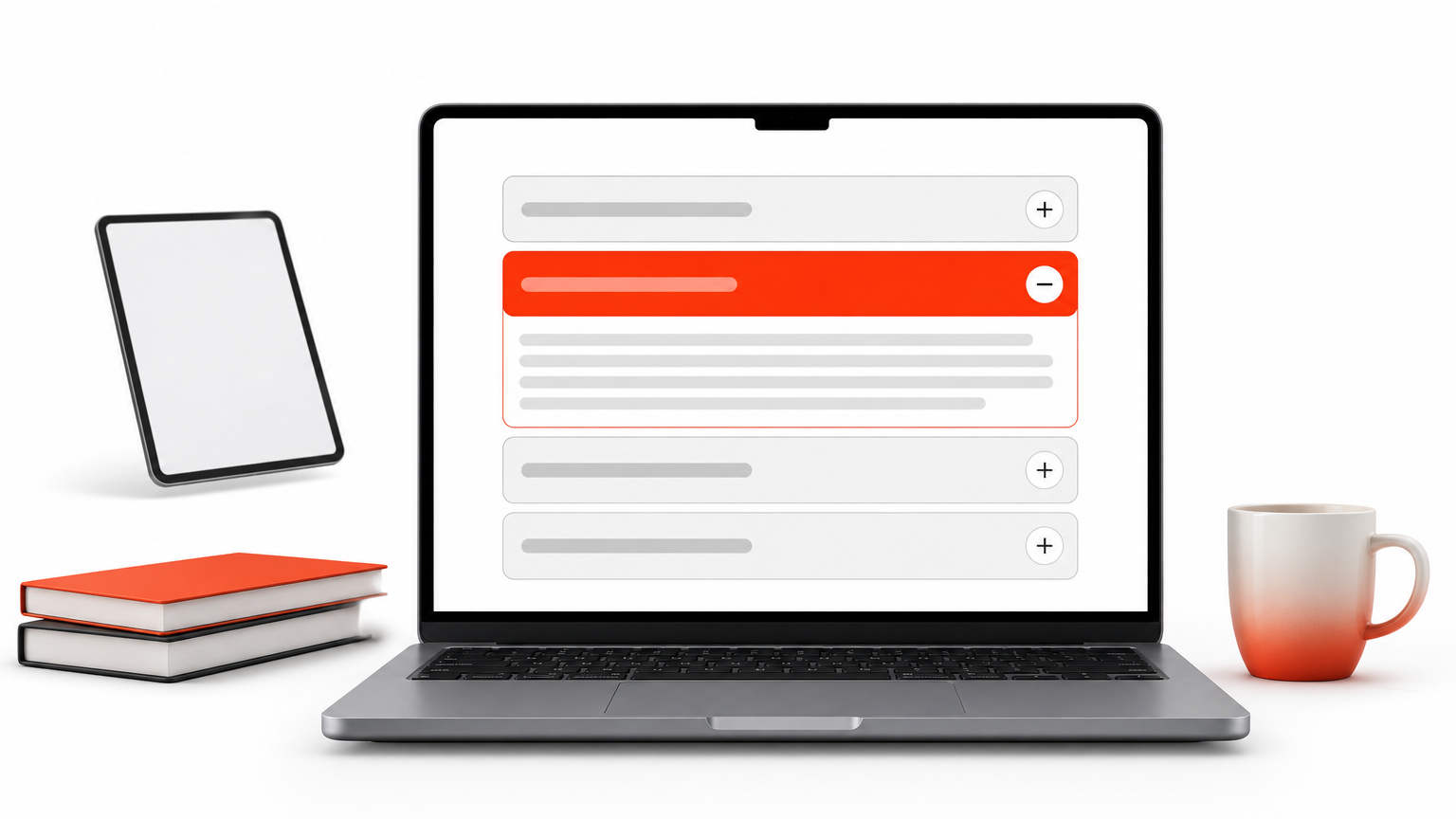
Layouts differ in how much they include. Some are only a styled module, so the fonts, borders, spacing, and icon colors are set but nothing surrounds them. Others are complete sections with a heading, a background, and sometimes a side column with a call to action. Check which type you have before you plan where it goes on the page.
Accordion or toggle: which module fits
Divi has two similar modules, and the layout you choose depends on which behavior you want. Pick the Accordion for short, scannable lists and the Toggle for content where visitors compare several answers at once.
| Accordion module | Toggle module | |
|---|---|---|
| Opening behavior | Opening one item closes the others | Each toggle opens and closes on its own |
| Default state | First item open on page load | Each toggle has its own open or closed setting |
| Structure | One module holds all the items | One module per toggle |
| Best for | FAQs, short feature lists | Long reference content, comparisons |
Choose the module by behavior first, then choose the layout by design.
Prerequisites checklist
Run through this list before you start. It prevents most import problems.
- A Divi site you can edit. The layout only works with the Divi Theme or Divi Builder.
- A matching version. A layout built for Divi 5 may not behave reliably on Divi 4, so read the product notes for the version it targets.
- A backup or staging copy. Importing adds items to the library and does not change your pages, but you will edit live pages shortly after.
- The file extracted. If you downloaded a ZIP, unzip it first. Divi imports the JSON files inside, not the ZIP.
- Security plugins in mind. A firewall plugin can interrupt the import, so know how to pause it for a few minutes.
Step 1. Choose the right accordion layout
Choose the layout by the job the accordion does on the page, then check a short list of technical details. A good-looking design that fails on mobile or in your Divi version costs more time than it saves.
Match the layout style to the content
Different content calls for different layouts. This table pairs common uses with the style that usually works.
| Use | Layout style that fits | Why it works |
|---|---|---|
| FAQ on a service page | Single column, bordered rows, plus and minus icon | Visitors recognize the pattern immediately |
| Pricing or plan details | Two columns, heading on the left, accordion on the right | Keeps the price visible while answers expand |
| Product specifications | Minimal rows with thin divider lines | Stays out of the way of product photos |
| Help center or documentation | Several accordions grouped under category headings | Long lists stay navigable |
| Dark hero or footer area | Light text on a dark background | Needs a contrast check before you commit |
Check these details before you buy or download
Every layout page should answer the questions below. If it does not, treat that as a warning.
- Divi version. Confirm that it states Divi 5, Divi 4, or both.
- Mobile behavior. Title bars should be tall enough to tap comfortably, and text should wrap without overflowing.
- Icon and font sources. Layouts that depend on custom fonts or icon packs need those assets to load on your site.
- Contrast. Title text and open-state colors should stay readable once you apply your brand colors.
- License. If you build sites for clients, make sure the terms allow use on client websites.
A layout that fits your Divi version and your content type beats a prettier one that does not.
Free or paid layouts
Free layouts are fine for a simple FAQ, and the Accordion module itself costs nothing beyond Divi. Their weak points are usually missing documentation, no mobile testing, and unclear licensing. Paid packs earn their price when you reuse the same style across several pages or client sites.
For reference, the Divi Hat Divi Accordion Bundle costs $29.99, includes 30+ Divi 5 accordion modules, and allows unlimited website usage. It works only with the WordPress Divi Theme. If you also want hero sections, wireframes, and full layouts, the Standard Yearly Membership costs $79.95 per year and covers all products, with an Agency Lifetime option at $297.95.
Step 2. Import the layout into the Divi Library
Import accordion layouts from Divi → Divi Library → Import & Export, using the Import tab and the JSON file you extracted. After a successful import, the layout sits in your library, ready to use on any page.
Import the JSON file
Follow these steps in your WordPress dashboard:
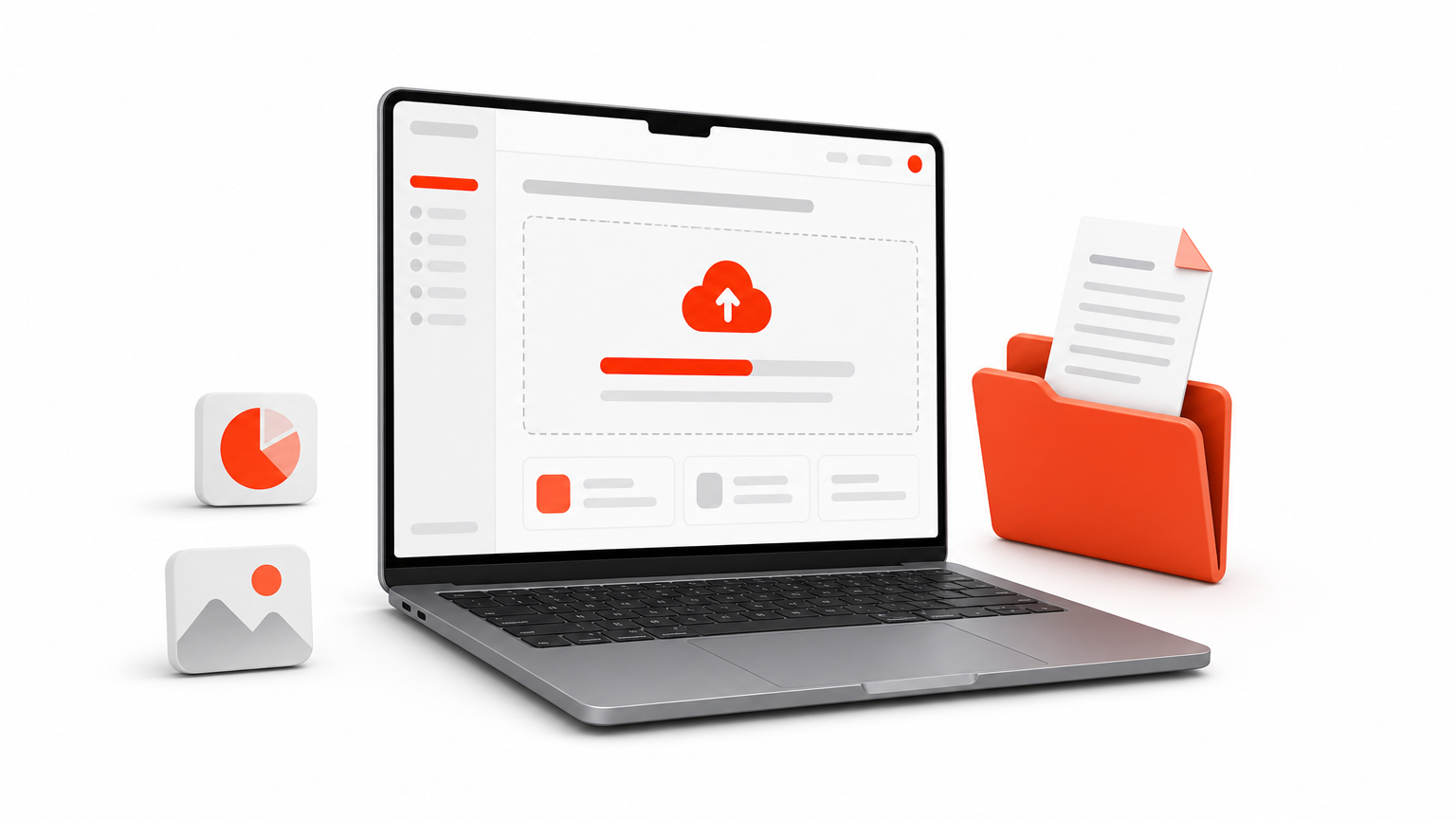
- Go to Divi → Divi Library.
- Click Import & Export at the top of the screen.
- Open the Import tab.
- Click the file chooser and select the extracted JSON file.
- Click Import Divi Builder Layouts and wait for the confirmation.
Some bundles ship one file that holds every layout plus a separate file for each design. If you only need one or two designs, import the individual files. Your library stays tidy, and you can find a layout by name instead of scrolling through dozens of entries.
Fix an import that stalls or fails
An import that freezes at 100% is usually blocked by a security plugin such as a firewall. Deactivate it for the length of the import, then turn it back on. This is the most common fix, and it takes under a minute.
If that does not help, look at the basics. Confirm the file is a JSON file and not the ZIP, check that your host allows uploads of that file size, and try again after clearing your cache. Large files on slow hosting can time out, so importing individual layouts instead of the full pack often solves it. If you would rather not troubleshoot, Divi Hat offers a Divi Layout Installation service where Divi designers install and customize the layout for you. You supply your Divi license and the WordPress or hosting credentials.
If an import freezes at 100%, pause your security plugin first, then look at file type and size.
Step 3. Add the layout to your page
Open the page in the Divi Builder, use the Add From Library option, pick your imported layout, and place it where the accordion should appear. How you load it depends on whether the layout is a single module or a full section.
Load a module-based layout
Many accordion packs save each design as a module. In this case, build the page structure first:
- Edit the page and launch the Divi Builder.
- Add a section and row with the column layout you want.
- Click the gray plus icon to add a module and choose the Accordion module.
- In the module settings, click Add From Library and select your imported design.
This approach is useful because the accordion sits inside a row you control. You can set column widths, put a heading above it, or place it beside an image without touching the accordion’s styling.
Load a section-based layout
If the layout is a full section, open the Add From Library option in the builder and look under your saved layouts. Before you confirm, check whether the option to replace existing content is on. If it is, loading the layout wipes the page, so turn it off when you only want to add the section to a page that already has content.
Once the layout is on the page, drag the section to its position. On a service page, the accordion usually works best after the main content and before the final call to action, so visitors reach their questions once they are already interested.
Add the layout inside a row you control, and check the replace option before you load a section.
Step 4. Customize, set the behavior, and test
Customize the content first, then the styling, then the open and close behavior, and finish by testing on the live page. This order stops you from fine-tuning colors on text you are about to rewrite.
Replace the content and adjust the design
Open the module settings and edit each item under the Content tab. Write the question or label as the title and put the answer in the body. Keep titles short enough to fit on one line on a phone, and keep answers to a few sentences.
Then switch to the Design tab. Here you change fonts, title colors, background colors for open and closed items, and the icon style. Use your site’s global colors and fonts where you can, so the accordion follows future brand changes without manual edits. To add a custom hover effect or tweak spacing for one accordion only, give the module a class and write CSS that targets it.
Make the accordion start all closed
By default, the Accordion module opens its first item when the page loads. If you want every item closed, you need a small piece of custom code, because the module’s own settings have no "all closed" option in the versions tested for this guide. If you can live with separate modules, the Toggle module has its own open or closed setting per item.
For the code route, first give the accordion a class. In Divi 4, open the module’s Advanced tab, expand CSS ID & Classes, and enter faq-closed as the CSS Class. In Divi 5, expand the Attributes group, add an attribute named class, and enter faq-closed as the value. Then go to Divi → Theme Options → Integration and paste this into the box labeled "Add code to the < head > of your blog":
<script>
jQuery(function($){
  var $acc = $('.et_pb_accordion.faq-closed');
  $acc.find('.et_pb_toggle_open')
    .removeClass('et_pb_toggle_open')
    .addClass('et_pb_toggle_close');
  $acc.find('.et_pb_toggle').on('click', function(){
    var $a = $(this).closest('.et_pb_accordion');
    setTimeout(function(){
      $a.removeClass('et_pb_accordion_toggling');
    }, 700);
  });
});
</script>
The class belongs on the accordion module, not on a single item. The effect does not show in the visual builder, so save the page and view the front end. Because the code depends on Divi’s own class names, retest after major Divi updates.
The same limit applies to opening and closing. In the Accordion module, clicking an open item does not collapse it, so visitors can only close it by opening another. If you want a true open and close behavior, use Toggle modules, or add custom code and test it carefully.
Avoid common accordion mistakes
Most accordion problems come from design choices, not from Divi. Check your page against this list:
- Hiding essential information. Keep prices, deadlines, and warnings visible. Collapse only secondary details.
- Writing long answers. If an answer needs several paragraphs, link to a full page instead.
- Using tiny tap targets. Title bars should be easy to hit with a thumb.
- Skipping the indicator. Always show a plus, minus, or arrow so visitors know the rows expand.
- Weak contrast. Check the title text against the background in both open and closed states.
- Stacking too many items. More than about ten rows in one list calls for grouping under headings.
Text inside a collapsed panel is still part of the page’s HTML, so search engines can read it. Even so, treat visibility as a user experience issue and not a ranking trick.
Finish with a test on the live page. Open it on a phone, tap every item, and clear your caching plugin or CDN if you see an old version.
Customize content before styling, set the behavior last, and always test on the front end.
Ready to put your accordion layout to work
Picking a layout that matches your Divi version, importing the JSON file into the library, adding it inside a row you control, and customizing the content and behavior is the whole process. Most failures trace back to a mismatched Divi version, a blocked import, or a first item left open when you wanted every item closed, and each has a quick fix above.
If you want ready-made designs to start from, you can browse the Divi Hat accordion layouts and see which style fits your FAQ, pricing, or documentation pages. Import one, replace the text, and publish. You will have a polished accordion on the page in a few minutes.